Provider box · Singtel
Singtel WiFi 7 Router login, restart, firmware and UPnP
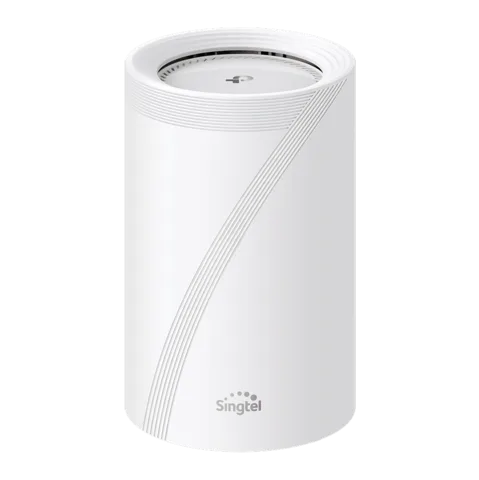
The Singtel WiFi 7 Router (HB611-SGST) is the TP-Link-built router Singtel supplies with Fibre Broadband, plugged into the fibre ONT or ONR. You manage it in a browser at tplinkwifi.net, and reboot, rename or update it from the My Singtel app.
- Sign in
tplinkwifi.netor192.168.88.1- App
- My Singtel app (iOS and Android), under Quick access › Manage WiFi.
- Password
- The login password is printed on the label on the bottom of the router, along with the default Wi-Fi name and password.
- Models
- HB611-SGST, RTM7230T-D171-SGST, TP-Link HB810, TP-Link HB813
Sign in to the Singtel WiFi 7 Router
Join the router’s Wi-Fi using the details on its label, or plug in with Ethernet.
Open
https://tplinkwifi.netorhttps://192.168.88.1in a browser.Type the password from the label and click Log in.
To change it, go to Setting › System Tools › Administration and use Account Management.
On the Askey RTM7230T-D171-SGST, sign in at https://cap.singtel/ with the user name and password on its bottom label. To factory reset the HB611-SGST, hold the reset button on the bottom for at least 5 seconds. This erases your settings.
Restart it properly
Log in to the My Singtel app.
Under Quick access, tap Manage WiFi.
Tap the reboot button and follow the instructions.
The light flashes yellow while the router restarts and turns green once it is back online. Don’t use the reset button to restart.
In the browser
Sign in at
tplinkwifi.net.Click Reboot at the top of the page.
Schedule a restart
Go to Setting › System Tools › Reboot Schedule.
Turn on Auto Reboot and set the Time.
Click Save.
The schedule runs on the router’s clock, so check System Tools › Time Settings first.
Update the firmware
In the My Singtel app, tap Manage WiFi under Quick access.
Find Update firmware and tap Update.
Choose the broadband service if you have more than one, and tick the checkbox.
Select the device with the yellow prompt, tap Update firmware, then confirm.
The light flashes green while firmware installs, then the router restarts and turns green after about two minutes. Don’t switch it off. Singtel provides security updates for the HB611-SGST until 28 August 2027.
In the browser
Sign in and go to Setting › System Tools › Firmware Upgrade.
Under Online Upgrade, click Check for Upgrades.
If a newer version appears, click Upgrade.
Or download the file from Singtel’s firmware page and use Local Upgrade: click Browse, tick the device and click Upgrade.
See connected devices
Sign in and open Setting › Network Map.
Click the clients icon to list every connected device.
For Wi-Fi details such as security and packets sent, open Setting › Wireless › Statistics.
In router mode, the same map is under Basic › Network Map.
UPnP and port forwarding
UPnP and port forwarding exist only in router mode. In access point mode, the default, the ONR or your own router handles them instead.
In router mode, sign in at
tplinkwifi.net.Go to Advanced › NAT Forwarding › UPnP.
Toggle UPnP on or off.
TP-Link turns UPnP on by default. It lets any app on your network open ports without asking, which malware can use too. Leave it on only if a console or call app needs it.
NAT-PMP
Neither Singtel nor TP-Link documents NAT-PMP on this router.
Prioritise calls and gaming
QoS is also a router-mode feature.
Sign in and go to Advanced › QoS.
Turn on QoS and enter the upload bandwidth of your plan.
In the QoS Rule List, pick a priority and click Add.
Click scan, choose the device, click OK, then Save.
Optional IPTV QoS reserves bandwidth for IPTV traffic.
2.4 and 5 GHz, and the channel
Band steering, on by default, moves devices to the best band and node. A separate MLO network lets Wi-Fi 7 devices use several bands at once.
Sign in and go to Setting › Wireless › Wireless Settings.
Turn Band Steering on or off at the top.
Choose 2.4GHz, 5GHz, 6GHz or MLO and set its name and password.
Click Save.
In the My Singtel app, turn off auto WiFi switching before giving 2.4 GHz and 5 GHz different names.
Change the channel
On the same page, choose the band.
Pick a Channel and, if needed, a Channel Width.
Click Save.
TP-Link advises leaving the channel on Auto unless you have interference. On the RTM7230T-D171-SGST, Singtel’s guide uses Wireless and Apply, and the router reboots.
Mesh: which node a device uses
Set up the extra Singtel WiFi 7 Router next to the main one and wait for a flashing blue light.
Connect a LAN port on the main router to any port on the new one with a cable.
Wait until both lights are green, then move the new router into place.
A solid yellow light on the second router means a weak link to the first; move them closer.
Pair with WPS instead
Hold WPS on the main router for about 5 seconds, then on the new one.
Wait at least 5 minutes until both lights turn green.
Check the mesh
Sign in and open Setting › Network Map.
Click the mesh devices icon to see every router in the mesh.
Guest network
Sign in and go to Setting › Guest Network.
In the Wireless section, tick Enable for 2.4GHz/5GHz or 6GHz.
Enter a network name, choose the Security type and set a password.
Click Save.
Guests get internet without seeing your main network. The Network Map has a switch to turn the guest network on and off.
DNS settings
Neither Singtel nor TP-Link’s HB-series guide shows how to choose DNS servers for your devices. Set DNS on the Mac instead.
Connection status and logs
Sign in and open Setting › Network Map; scroll down for the Wireless panel.
Setting › System Tools › System Log lists events; pick a type and level, then click Refresh.
Click Save Log to keep a copy for Singtel support.
The light tells you a lot: green is online, solid blue is set up with no internet, and flashing red is a lost connection. In router mode, status is under Advanced › Status and ping tests under Advanced › System Tools › Diagnostics.
Manuals and downloads
- Singtel WiFi 7 Router (HB611-SGST) quick installation guide (PDF)
- Singtel WiFi 7 Router (HB611-SGST) LED troubleshooting
- TP-Link HB810 mesh user guide (PDF)
- Firmware downloads
Links go to the maker’s own pages.
Questions
Where do I find the router password?
On the label on the bottom of the router. The same label has the default Wi-Fi name and password.
Why can’t I find UPnP, QoS or port forwarding?
The router starts in access point mode, where those pages don’t exist. They appear only in router mode, under Advanced.
Which address opens the RTM7230T-D171-SGST?
Singtel’s guide uses https://cap.singtel/, with the user name and password from the label on the bottom.
Sources
- Singtel: Change WiFi name and password on the WiFi 7 Router (HB611-SGST)
- Singtel: Change WiFi name and password on the WiFi 7 Router (RTM7230T-D171-SGST)
- Singtel: Change WiFi network name and password
- Singtel: Download latest firmware
- Singtel: WiFi 7 Router (HB611-SGST) LED troubleshooting
- Singtel: WiFi 7 Router (HB611-SGST) quick installation guide (PDF)
- Singtel: WiFi Care (reboot and update from the My Singtel app)
- Singtel: Troubleshoot by router
- TP-Link: HB810 mesh user guide (PDF)
- TP-Link: HB810 support and downloads (Singapore)
Checked on 1 November 2026.
See what your router can’t tell you
Kilobat is a Mac menu-bar app that watches the network from your side: which app is using it, whether the Wi-Fi, the router or the provider is slow, and why a call froze.
brew install seifip/kilobat/kilobat