Provider box · Rogers
Rogers Xfinity Gateway (Ignite) login, restart, port forwarding and Pods
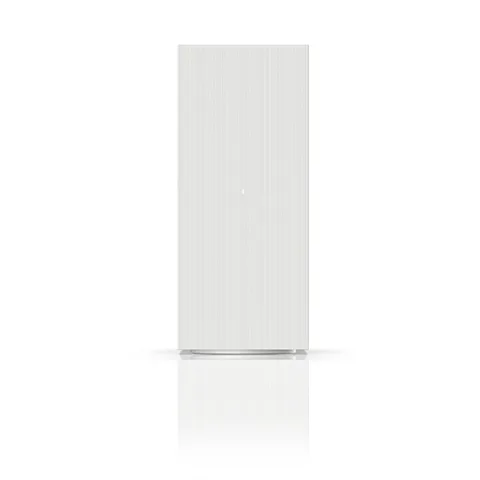
The Rogers Xfinity Gateway, formerly the Ignite WiFi Gateway, is the modem and router Rogers supplies with Rogers Xfinity Internet. You manage it mainly in the Rogers Xfinity app; the admin page at https://10.0.0.1 covers the rest.
- Sign in
- The Rogers Xfinity app or
10.0.0.1 - App
- Rogers Xfinity app (iOS and Android), signed in with your MyRogers or MyRogers (Shaw) username
- Password
- The admin username is
admin. The admin password is the unique code on the label on the bottom of the gateway. The first time you sign in, the gateway asks you to create a new admin password. - Models
- Rogers Xfinity Gateway Gen 4, Rogers Xfinity Gateway Gen 3 (XB8), Rogers Xfinity Gateway Gen 2 (XB7), Rogers Xfinity Gateway Gen 1 (XB6)
Sign in to the Rogers Xfinity Gateway (Ignite)
Some settings, such as the admin password and bridge mode, need the browser admin page.
Connect your Mac to the gateway’s Wi-Fi or plug it in with a cable.
Open
https://10.0.0.1in your browser.If a certificate warning appears, choose the option to continue, such as Show details in Safari.
Sign in with
adminand the password from the label.To change the admin password, select Troubleshooting › Change Password and save.
Forgot the admin password? Rogers says to factory reset the gateway with its button, which erases all your settings; then set it up again in the Rogers Xfinity app.
Restart it properly
A restart can take several minutes. Internet, and Rogers home phone on the gateway, are down meanwhile.
Open the Rogers Xfinity app and select WiFi, then View WiFi equipment.
Select the gateway modem.
Select Restart, then Restart Gateway.
Restart from the admin page
Sign in at
https://10.0.0.1and select Troubleshooting › Reset/Restore Gateway.Choose Reset to restart the whole modem.
Or choose Reset WiFi Module or Reset WiFi Router to restart only those parts.
Restore WiFi Settings and Restore Factory Settings on the same page erase settings. Use them only if you mean to.
Restart by hand
Unplug the gateway’s power cord.
Wait 30 seconds and plug it back in.
Wait for the light on top to turn solid white.
Factory reset with the button
On Gen 1, hold the Reset button under the coax connection until the light turns green.
On Gen 2 and Gen 3, hold the WPS button above the phone ports for at least 30 seconds.
On Gen 4, hold the Reset button on the back for 15 to 30 seconds.
Set the gateway up again in the Rogers Xfinity app.
A factory reset removes your Wi-Fi name, password, port forwards and bridge mode. Note your custom settings first.
Schedule a restart
Rogers documents no scheduled restart.
Update the firmware
Leave the gateway plugged in and online; Rogers installs software updates automatically.
If the light alternates amber and green, an update is in progress.
Wait at least 10 minutes; the gateway restarts on its own when done.
Rogers documents no way to check for or start an update yourself.
See connected devices
Open the Rogers Xfinity app and select Devices.
A green dot means online, a pause symbol paused, and a greyed-out icon not connected.
Select a device and open Device Details to see its maker; select Edit to rename it.
To cut one off, select WiFi, pick the device and select Pause Device.
To remove an old device, open it from Connect, select Device Details, then Forget Device.
Pausing blocks internet over your home network only, not mobile data. Group devices into profiles under WiFi › Manage People to pause them together.
UPnP and port forwarding
Rogers’ help pages don’t mention UPnP or NAT-PMP for the Rogers Xfinity Gateway, so there is no documented switch for it. Port forwarding is documented in the app.
Rogers says the gateway blocks potentially harmful inbound access, which is why some apps need forwarded ports. Every forwarded port is open to the internet, so remove rules you no longer use. Rogers advises port forwarding over DMZ, which it calls a security risk.
Port forwarding
Give the device a fixed IP address first, as Rogers recommends.
In the app, select WiFi › View WiFi equipment › Advanced Settings › Port Forwarding.
Select Add Port Forward and choose the device from the list.
Pick a preset such as PlayStation, or Manual Setup for your own ports.
To change or remove a rule, select Edit next to it, then Apply Edits or Delete this Port Forward.
A device must be connected to your home network to appear in the list.
Use your own router (bridge mode)
Sign in at
https://10.0.0.1and select Gateway › At a Glance.Next to Bridge Mode, select Enable and confirm with OK.
Wait about 90 seconds, then plug your router into either Ethernet port.
Bridge mode turns off the gateway’s Wi-Fi and the Rogers Xfinity app, and disables WiFi Boost Pods. With Rogers home phone, unplug the gateway for 10 seconds afterwards and check for a dial tone.
Prioritise calls and gaming
Rogers documents no QoS or device-priority setting for the Rogers Xfinity Gateway. For games and calls, Rogers suggests plugging the device into the gateway with an Ethernet cable.
2.4 and 5 GHz, and the channel
Band steering is on by default: one Wi-Fi name, and the gateway steers each device to the best band. Gen 3 adds 6 GHz.
Open the Rogers Xfinity app and select WiFi › WiFi details.
Select Edit WiFi settings.
Tick Use different names and passwords for 2.4 GHz and 5 GHz WiFi to split the bands, or untick it to merge them.
Enter the Wi-Fi names and passwords, then select Apply Changes.
With WiFi Boost Pods you can’t split the bands: Pods need a single Wi-Fi name and password.
Change the channel
Rogers’ current help pages show no channel setting for the Rogers Xfinity Gateway.
Mesh: which node a device uses
Rogers Xfinity WiFi Boost Pods, formerly Ignite WiFi Pods, extend the gateway’s Wi-Fi as a mesh. The app warns with a Pod Offline notice when one drops out.
Open the Rogers Xfinity app and select the Overview or Connect tab.
Check each Pod; a green status means it is online.
If a Pod is offline, select it and tap Help me Fix it.
Place each Pod about halfway between the gateway and the weak spot, not in it.
Don’t plug Pods into a power bar, extension cord or switched outlet.
Guest network
Rogers’ guest Wi-Fi guide covers only its older Hitron modems and eero, not the Rogers Xfinity Gateway, so there is no documented separate guest network.
A Guest profile for visitors’ devices
In the app, select WiFi and pick a visitor’s device.
Select Assign this Device, choose Guest and select Save.
This only labels devices on your main network; it doesn’t isolate them.
DNS settings
Rogers documents no way to change the DNS servers on the Rogers Xfinity Gateway. Set DNS on the Mac instead, or use your own router with the gateway in bridge mode.
Connection status and logs
Check rogers.com/outage for a known outage in your area.
Look at the light on the gateway. Solid white means online; solid red or amber means it lost the network.
If it lost the network, unplug the gateway, plug it back in and wait at least 5 minutes.
To test speed, open the app and select WiFi › Troubleshoot › Test your whole home network.
Flashing amber means it is looking for a signal: tighten the coax cable at both ends.
Manuals and downloads
- Rogers: Manage your Rogers Xfinity Gateway
- Rogers: Easy Installation Guide for the Rogers Xfinity Gateway
Links go to the maker’s own pages.
Questions
Is the Ignite WiFi Gateway the same as the Rogers Xfinity Gateway?
Yes. Rogers renamed Ignite to Rogers Xfinity, and its old Ignite support addresses now lead to the Rogers Xfinity Gateway pages.
Why can’t I see separate 2.4 and 5 GHz networks?
Band steering is on by default, and WiFi Boost Pods need one network name. Split the bands in Edit WiFi settings only if you have no Pods.
Sources
- Rogers Support: Manage your Rogers Xfinity Gateway
- Rogers Support: How to restart or reset the Rogers Xfinity Gateway
- Rogers Support: Use Port Forwarding with Rogers Xfinity
- Rogers Support: Turn Bandsteering on and off for the Rogers Xfinity Gateway
- Rogers Support: Manage your devices with the Rogers Xfinity app
- Rogers Support: How to pause WiFi access with the Rogers Xfinity app
- Rogers Support: Troubleshooting your Rogers Xfinity WiFi Boost Pod extenders
- Rogers Support: How to turn on bridge mode on your Rogers Xfinity Gateway
- Rogers Support: How to troubleshoot internet with Rogers Xfinity Gateway
- Rogers Support: Set Up a Guest WiFi Network
Checked on 1 November 2026.
See what your router can’t tell you
Kilobat is a Mac menu-bar app that watches the network from your side: which app is using it, whether the Wi-Fi, the router or the provider is slow, and why a call froze.
brew install seifip/kilobat/kilobat