Provider box · Orange Spain
Orange Spain Livebox login, restart, Wi-Fi bands and ports
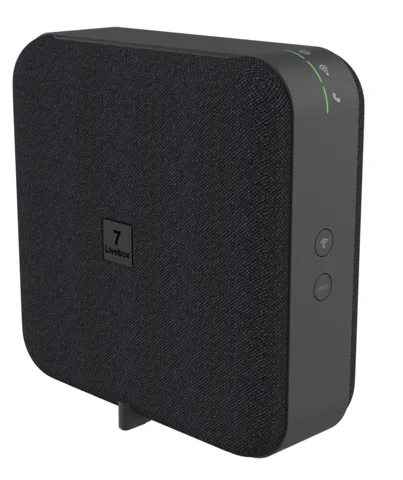
The Livebox is the fibre router Orange supplies in Spain, with the fibre ONT built in on the Livebox 7 and 6s. You manage it in a browser at http://livebox, or from the Mi Livebox section of the Mi Orange app.
- Sign in
liveboxor192.168.1.1- App
- Mi Orange (iOS and Android), section Mi Livebox
- Password
- The user name is
admin. Unless you changed it, the password is the Wi-Fi key (Clave Wi-Fi) printed on the label under the router, next to the main network nameLivebox7-XXXX. - Models
- Livebox 7, Livebox 6s, Livebox 6, Livebox 6+, Livebox Fibra, Livebox Infinity
Sign in to the Livebox (Orange Spain)
Connect your Mac to the Livebox with an Ethernet cable or over the Wi-Fi network on the label.
Open
http://liveboxorhttp://192.168.1.1in your browser.Type
adminas the user and the Wi-Fi key from the label as the password.Click Acceso (Sign in).
Forgotten a password you set? Press the Reset hole at the back for 5 seconds with a pen or clip. That restores the label password but erases every setting, including Wi-Fi names and port rules. The fibre password (ONT password) is a different key that Orange sent you by SMS, email or letter.
Change the admin password
Open the Configuración avanzada (Advanced settings) tab.
Click Administración in the left-hand column.
Enter the Contraseña actual (Current password), then the new one twice.
Click Guardar (Save). The user name stays
admin.
Restart it properly
Orange documents a restart from the Mi Orange app. Your phone must be on the Livebox’s own Wi-Fi.
Open Mi Orange and go to Mi Livebox.
Tap Configuración (Settings).
Tap Reiniciar (Restart) and wait for the Internet light to turn steady green.
Don’t use the Reset hole to restart: holding it for 5 seconds returns the Livebox to factory settings.
With the power button
Press the On/Off button at the back to switch the Livebox off.
Press it again to switch it back on.
Wait until the Internet light is steady green.
Schedule a restart
Orange Spain documents no scheduled restart. The Planificador del Wi-Fi (Wi-Fi scheduler) only switches Wi-Fi off at set hours.
Update the firmware
Orange Spain’s help pages describe no manual software update or version page for the Livebox 7 or 6s. Orange manages the router’s software remotely.
See connected devices
Sign in and open the Mi red local (My local network) tab.
Click Dispositivos conectados (Connected devices) for a map of wired and Wi-Fi devices.
Click a device to rename it, change its icon or block its internet access.
Open Dispositivos desconectados (Disconnected devices) for those seen before but offline now.
For signal details, open Wi-Fi › Equipos Wi-Fi (Wi-Fi devices) to see band, RSSI and current speed.
In Mi Orange, the network map in Mi Livebox shows the same devices with their signal level. You can rename them and block or schedule their internet access there too.
UPnP and port forwarding
Orange Spain lists UPnP among the Livebox 7’s supported services, but its help pages document no switch to turn it on or off.
Orange Spain documents no UPnP IGD or NAT-PMP setting for the Livebox. Open ports by hand instead, as below.
Open a port by hand
Open Configuración avanzada › Configuración de la red › NAT/PAT (Advanced › Network settings › NAT/PAT).
Under Personalizar reglas (Custom rules), pick the Aplicación / servicio (Application / service).
Fill in Puerto interno (Internal port) and Puerto externo (External port); write a range as
first-last.Choose the Protocolo (TCP, UDP or both) and the Dispositivo (Device).
Click Añadir (Add).
Give the device a fixed address first, so the rule keeps pointing at it. A port rule exposes that device to the internet: only open what a game or app really needs.
Prioritise calls and gaming
Orange Spain documents no QoS or device-priority setting on the Livebox. You can only block a device or limit its internet hours under Mi red local › Dispositivos conectados.
2.4 and 5 GHz, and the channel
By default the Livebox runs Wi-Fi Inteligente (Smart Wi-Fi): one network name for all bands, with the router choosing the band and channel for each device. The Livebox 7 also has a separate …-Wi-Fi7 network for Wi-Fi 7 devices.
Sign in and open the Wi-Fi tab, then Wi-Fi principal (Main Wi-Fi).
Confirm the pop-up with OK.
Click Ver (Show) to open the secondary networks (SSIDs secundarios).
Turn on the 5 GHz or 6 GHz secondary network, and give it a name and password.
Click Guardar (Save).
The 6 GHz band is only on the ZTE version of the Livebox 7. On a Livebox 6 or Fibra, turning Wi-Fi inteligente off lets you name each band separately.
Pair a 2.4 GHz-only gadget
Hold the WPS button for 5 seconds; the Wi-Fi light flashes white and green.
Within 15 minutes, pair the gadget using the network name and key on the left of the label.
After 15 minutes the Livebox starts broadcasting 5 GHz again on its own.
Change the channel
Orange Spain documents no manual channel setting. Wi-Fi Inteligente picks the least crowded channel automatically.
Mesh: which node a device uses
Orange’s Wi-Fi repeaters join the Livebox in one Smart Wi-Fi network, so devices move between them automatically.
Sign in and open Wi-Fi › Equipos Wi-Fi (Wi-Fi devices).
Check the second group, which lists devices connected through a repeater.
Read the Banda column;
Rep-5GorRep-2.4Gmeans the device uses a repeater.
Connect the repeaters to the main Smart Wi-Fi network name: Orange says repeaters don’t relay the secondary networks.
Guest network
Sign in and open the Wi-Fi tab, then Wi-Fi de invitados (Guest Wi-Fi).
Use the Activar/desactivar (On/off) button to turn the guest network on.
Set the Nombre (SSID) (Network name) and the Clave Wi-Fi (Wi-Fi key).
Set the Temporizador (Timer) to turn the network off after a few hours.
Click Guardar (Save).
Guests get internet access but can’t reach the other devices on your home network.
DNS settings
Orange Spain’s help pages document no setting for the DNS servers the Livebox hands out. Set DNS on the Mac instead.
Connection status and logs
Open Mi Orange, go to Mi Livebox and check the Wi-Fi, Internet and Teléfono (Phone) status.
Tap Diagnóstico (Diagnostics) to check and optimise the connection.
Look at the Internet light on the Livebox; steady green means the connection is up.
Steady white means the fibre password is missing or wrong; slow white flashing means no internet yet.
Fast white flashing means the fibre isn’t connected: check the green fibre cable at both ends. Orange Spain documents no line or event log page in the web interface.
Manuals and downloads
- Ayuda Orange: Router Livebox 7 (guides and installation PDFs)
- Ayuda Orange: Router Livebox 6s (Arcadyan)
- Livebox 7 ZTE installation guide (PDF)
Links go to the maker’s own pages.
Questions
Which password opens the Livebox settings?
The user is admin and the password is the Wi-Fi key on the label under the router, unless you changed it. It is not the fibre (ONT) password Orange sent you separately.
A smart plug won’t pair with my Livebox. What can I do?
Hold the WPS button for 5 seconds. The Livebox stops 5 GHz for 15 minutes so 2.4 GHz-only gadgets can join.
Sources
- Ayuda Orange: Acceso a la configuración de tu router Livebox 7
- Ayuda Orange: Todo lo que debes saber sobre tu router Livebox 7
- Ayuda Orange: Cambia la clave de administración de tu router Livebox 7
- Ayuda Orange: Resolución de problemas comunes del router Livebox 7
- Ayuda Orange: Activa un SSID secundario en el router Livebox 7
- Ayuda Orange: Activa la red Wi-Fi de invitados en Livebox 7
- Ayuda Orange: Características de las conexiones Wi-Fi Livebox 7
- Ayuda Orange: Conecta un dispositivo que sólo soporta la banda de 2.4 GHz en tu Livebox 7
- Ayuda Orange: Ver los dispositivos conectados al router Livebox 7
- Ayuda Orange: Abrir manualmente un puerto o un rango de puertos en Livebox 7
- Ayuda Orange: Hacer un reset a valores de fábrica en tu router Livebox 7
- Ayuda Orange: Programa el apagado y encendido de la red Wi-Fi en tu Livebox 7
- Ayuda Orange: Módulo Mi Livebox incluido en Mi Orange
- Ayuda Orange: Todo lo que debes saber sobre el Wi-Fi Inteligente de Orange
Checked on 1 November 2026.
See what your router can’t tell you
Kilobat is a Mac menu-bar app that watches the network from your side: which app is using it, whether the Wi-Fi, the router or the provider is slow, and why a call froze.
brew install seifip/kilobat/kilobat