Provider box · DIGI
DIGI router login, restart, ports and Wi-Fi settings
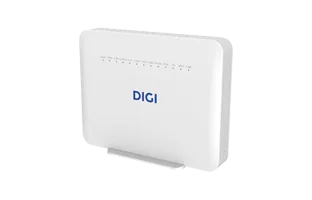
DIGI supplies ZTE routers with its fibre in Spain, most recently the Wi-Fi 7 ZTE ZXHN F6705. You manage them in a browser at 192.168.1.1; the sign-in screen offers a choice of language, and DIGI’s manuals quote the Spanish labels.
- Sign in
192.168.1.1- App
- Mi DIGI (account only)
- Password
- The user name is
user. DIGI’s current manuals say the password is printed on the router’s label, and the router makes you change it at the first sign-in. - Models
- ZTE ZXHN F6705, ZTE ZXHN H3600, ZTE ZXHN F8648P, ZTE ZXHN H3600P
Sign in to the DIGI router
Factory default. DIGI’s quick-start guides and its FAQ give user as both user name and password on older units. Change it at the first sign-in, as the router asks.
Connect your Mac to the router by Wi-Fi or an Ethernet cable; DIGI recommends a computer.
Open
http://192.168.1.1in your browser and press Return.Pick your language at the top right of the sign-in screen.
Enter
userand the password from the label, then click Iniciar sesión (Sign in).The first time, set a new password when the router asks.
Forgotten the password you set? Hold the Reset button for at least 10 seconds on the H3600 (5 seconds on the F6705). That restores factory settings, including the Wi-Fi name and password.
Restart it properly
DIGI’s manuals restart the router with its On/Off switch. After activating Conexión Plus, DIGI also asks you to restart the router so it picks up the new public IP address.
Switch the router off with the On/Off button on the back.
Wait a few seconds, then switch it back on.
Wait a few minutes until the Internet light is steady.
Don’t use the Reset button to restart: holding it returns the router to factory settings.
Schedule a restart
DIGI’s manuals document no scheduled or web-interface restart.
Update the firmware
DIGI’s manuals don’t describe checking or installing router software. On the F6705, a slowly flashing green PON light means the router is updating, so DIGI pushes updates itself.
See connected devices
Sign in at
http://192.168.1.1.Read the main screen, which lists devices connected by Wi-Fi (WLAN) and by cable (LAN).
To limit a device’s hours, open Internet › Controles Parentales (Parental controls) in the left menu.
Switch a rule to Encendido (On), pick the device and the days and times, then click Aplicar (Apply).
UPnP and port forwarding
DIGI uses CG-NAT, so by default your router shares a public IPv4 address with other customers. Ports can’t be opened from outside until you add DIGI’s Conexión Plus (1 € a month), which gives you your own dynamic public IP.
DIGI’s manuals for the ZTE routers don’t mention UPnP IGD or NAT-PMP, so open ports by hand as below.
DIGI warns that opening ports can put your devices at risk, and that DMZ exposes one device fully. Open only the ports a game or app needs, and close them when you’re done.
Open ports by hand
Activate Conexión Plus in Mi DIGI under Productos (Products) or by calling 1200, then restart the router. Give the target device a fixed IP address first.
Sign in and open Internet in the top menu, then Seguridad (Security) on the left.
Open Reenvío de puertos (Port forwarding); older firmware calls it Port Forwarding.
Enter a Nombre (Name), the Protocolo (TCP, UDP or both) and the device’s IP address.
Enter the ports under WAN Port and LAN Host Port, switch the rule on and click Aplicar.
Ports 443, 21, 80 and 7547 can’t be opened because DIGI uses them to manage the router. Port 25 needs a request to DIGI.
Prioritise calls and gaming
DIGI’s manuals list QoS as a feature of the F6705 but document no setting to prioritise devices or traffic.
2.4 and 5 GHz, and the channel
The routers broadcast separate 2.4 GHz and 5 GHz networks. On the F6705, MLO (on by default) adds a Wi-Fi 7 network that uses both bands at once.
Sign in and open Red local (Local network) in the top menu.
Click WLAN › WLAN Básico › Configuración WLAN SSID (Basic WLAN › WLAN SSID settings).
Pick the 2.4 GHz or 5 GHz network and make sure it is Encendido (On).
Change Nombre SSID (Network name) or Frase de contraseña WPA (WPA passphrase), then click Aplicar.
Change the channel
Open Red local › WLAN.
Open Wi-Fi periférica (F6705) or Radar WLAN (H3600) to see nearby networks’ channels.
Open Configuración Global WLAN (Global WLAN settings) for 2.4 GHz or 5 GHz and pick a channel.
Click Aplicar.
DIGI recommends channels 1, 6 or 11 on 2.4 GHz and 36, 40, 44 or 48 on 5 GHz.
Turn MLO off (F6705)
Open Red local › WLAN › MLO, set it to Apagado (Off) and click Aplicar.
After the router restarts, switch off SSID 2 and SSID 6 under Configuración WLAN SSID.
Mesh: which node a device uses
DIGI’s manuals for these routers document no mesh or repeater setup. DIGI does offer an extra-router service, NEO WIFI, but its help pages don’t describe how to set it up.
Guest network
The router has eight network slots, four per band; one of each is on by default. A guest network is simply another slot switched on.
Sign in and open Red local › WLAN › WLAN Básico › Configuración WLAN SSID.
Expand a network that is Apagado (Off) and switch it to Encendido (On).
Set its Nombre SSID and Frase de contraseña WPA.
Click Aplicar.
On the F6705 with MLO on, SSID 2 and SSID 6 are already used by the MLO network. DIGI’s manuals don’t say whether the extra networks are isolated from your home network.
DNS settings
DIGI’s manuals document no way to change the DNS servers the router hands out. Set custom DNS on the Mac instead.
Connection status and logs
Check the Internet light; steady means connected, and red on the H3600 means the router failed to get an IP.
On the F6705, a steady or flashing red LOS light means a fibre signal problem.
Sign in; the main screen shows the WAN connection and connected devices.
Run DIGI’s speed test to check your line speed.
DIGI’s manuals don’t describe an event log or line statistics page.
Manuals and downloads
- DIGI: ZTE ZXHN F6705 user manual (PDF, Spanish)
- DIGI: ZTE H3600 user manual (PDF, Spanish)
- DIGI: user guides for every router
- DIGI: Fibra help and FAQ
Links go to the maker’s own pages.
Questions
Why can’t I open ports on my DIGI router?
DIGI uses CG-NAT, so you share a public IP with other customers. Add Conexión Plus (1 € a month) in Mi DIGI, restart the router, then set up port forwarding.
Can I use my own router with DIGI?
Yes. Call DIGI for the PPPoE details; fixed-line phone service then won’t work, except with a ZTE F6705 in bridge mode, which DIGI documents separately.
Sources
- DIGI: Manual de usuario ZTE ZXHN F6705
- DIGI: Manual de usuario ZTE H3600
- DIGI: Guía rápida de instalación ZTE H3600
- DIGI: Guía para la apertura de puertos ZTE
- DIGI: Preguntas frecuentes, Fibra (CG-NAT, router settings, own router)
- DIGI: Servicios adicionales (Conexión Plus, NEO WIFI)
- DIGI: Guías de usuario
Checked on 1 November 2026.
See what your router can’t tell you
Kilobat is a Mac menu-bar app that watches the network from your side: which app is using it, whether the Wi-Fi, the router or the provider is slow, and why a call froze.
brew install seifip/kilobat/kilobat