Provider box · Movistar
Movistar Router Smart WiFi login, restart, devices and ports
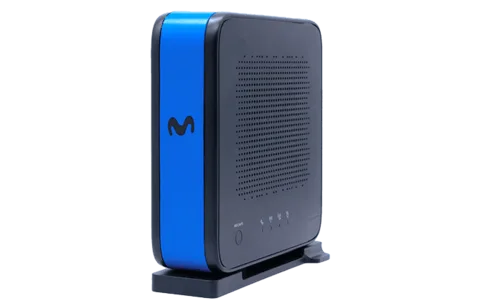
The Router Smart WiFi is the fibre router Movistar supplies in Spain; the current model is the Router Movistar WiFi 7. You manage everyday settings in the Smart WiFi app and advanced ones in the router’s web portal at 192.168.1.1.
- Sign in
192.168.1.1- App
- Smart WiFi (iOS and Android), signed in with your Mi Movistar details
- Password
- The portal password is on the sticker under the router, in the box labelled Datos de acceso al equipo (Device access details). The Wi-Fi name, key and QR code are on the label on the router’s side.
- Models
- Router Movistar WiFi 7 (Askey RTF8316VW), Router Smart WiFi 6 (Askey RTF8225VW), Router Smart WiFi 6 (Mitrastar GPT-2742GX4X5v6), Router Smart WiFi 6 (Mitrastar GPT-2841GX4X5)
Sign in to the Router Smart WiFi
Connect your Mac to the router by Wi-Fi or Ethernet, at home.
Open
http://192.168.1.1in your browser.Enter the password from the Datos de acceso al equipo sticker.
Open the menu and pick the setting you want to change.
The app needs you to be the account holder of the fibre line and to have a compatible Router Smart WiFi. Forgotten the Mi Movistar password? Use He olvidado la contraseña de Mi Movistar in the app.
Restart it properly
Movistar says to restart the router when the internet light is off or red, or devices can’t get online.
Press the ON/OFF button on the back of the router.
Wait a few seconds.
Press ON/OFF again and wait until the lights are steady blue.
A restart keeps your settings. Holding Reset for 10 seconds restores factory settings instead: after about 90 seconds the Wi-Fi name and keys go back to the ones on the label.
Restart only the Wi-Fi
On the Router Movistar WiFi 7, hold the WiFi/WPS button for 7 to 15 seconds to switch the Wi-Fi off, and again to switch it back on.
Schedule a restart
Movistar documents no scheduled restart.
Update the firmware
There is no manual update. Movistar updates the router remotely now and then; the lights blink during an update and turn blue after a few minutes. Don’t switch the router off or unplug it while it updates.
See connected devices
Open the Smart WiFi app and tap Dispositivos (Devices) at the bottom left.
Review your devices on the map, and pause or block any you don’t recognise.
Look under Otros (Other) for devices you haven’t named yet.
Turn on alerts to be told when a new device connects.
A phone or laptop using a private (random) Wi-Fi address can show up twice, once per network. Movistar suggests turning that setting off for your home Wi-Fi.
UPnP and port forwarding
Movistar’s help pages document no UPnP setting for the Router Smart WiFi, and don’t say whether UPnP IGD is on. They offer two ways to open ports instead.
In the Smart WiFi app, open Dispositivos and tap your console or computer.
Open the Servicios Smart WiFi (Smart WiFi services) tab and tap Gestionar Gaming (Manage gaming).
Choose the game service or platform you use; the router opens the ports it needs.
Every open port is a way into your network from the internet. Open only the ports a device needs, and remove forwards you no longer use.
Port forwarding in the web portal
For other port forwards, sign in at http://192.168.1.1 and pick the ports option in the menu.
NAT-PMP
Movistar documents no NAT-PMP setting.
Prioritise calls and gaming
Gaming mode gives game traffic priority on up to two devices. Priorities switch off every day at 4:00.
Open the Smart WiFi app and choose your gaming device under Dispositivos.
Open the Servicios Smart WiFi tab and tap Gestionar Gaming.
Tap Priorizar (Prioritise).
2.4 and 5 GHz, and the channel
The Router Smart WiFi 6 and WiFi 7 broadcast one network name and key for both WiFi (2.4 GHz) and WiFi+ (5 GHz). Band steering moves each device to the most suitable band.
For a smart plug, bulb or camera that won’t connect, hold the WiFi/WPS button for more than 15 seconds.
The 5 GHz network switches off for about 10 minutes, leaving 2.4 GHz with the same name and key.
Connect the gadget during that time.
A separate network for gadgets
On the Router Movistar WiFi 7, sign in at
http://192.168.1.1and open the drop-down menu.Select WiFi IoT, tick Activar WiFi IoT (Turn on IoT Wi-Fi) and apply.
Connect your smart-home devices to this network.
Change the channel
Movistar’s help pages advise checking the channel for interference but document no manual channel setting.
Mesh: which node a device uses
The Amplificador Movistar WiFi 7 extends a Router Smart WiFi 6 or WiFi 7 with EasyMesh, keeping the same network name and key. Devices move to the best access point by themselves.
Set the amplifier’s switch to REP (Repeater), switch it on near the router and pair it as the guide says.
Once paired, move it halfway between the router and the area with poor Wi-Fi.
Check its signal light; blue means good, steady red means move it closer, blinking red means pair it again.
With an Ethernet socket nearby, choose AP (Access point) and connect it by cable instead.
After replacing the router, reset each Movistar amplifier by holding Reset for over 10 seconds, then pair it again.
Guest network
Open the Smart WiFi app and go to Mi red › Mi WiFi (My network › My Wi-Fi).
Find WiFi Invitados (Guest Wi-Fi), which is off by default, and tap Activar (Turn on).
The guest network appears with INV after your Wi-Fi name; tap it to change its password.
Guests can’t change router settings or see your other devices. Tap the switch again to turn the guest network off.
DNS settings
Movistar’s help pages document no setting for the DNS servers the router hands out. Set DNS on the Mac instead.
Connection status and logs
Look at the Internet light; steady blue means the connection works.
Blinking red points to the fibre cable; steady red means a router or firmware fault.
On the Router Movistar WiFi 7, open
http://192.168.1.1/ledfor a live view of the lights; it needs no password.In the app, go to Mi Red › Herramientas WiFi › Test de rendimiento (Performance test) to measure speeds.
The app’s Análisis de la señal WiFi (Wi-Fi signal analysis) rates coverage in each room as optimal, medium or low. If a red light stays on after a restart, call Movistar on 1002.
Manuals and downloads
- Router Movistar WiFi 7 (Askey RTF8316VW) manual (PDF, Spanish)
- Router Smart WiFi 6 (Askey RTF8225VW) manual (PDF, Spanish)
- Movistar: Router Movistar WiFi 7
- Movistar: Manuales de equipos
Links go to the maker’s own pages.
Questions
Where is the router password?
On the sticker under the router, labelled Datos de acceso al equipo. It is different from the Wi-Fi key on the side label.
Why does the Smart WiFi app say my router isn’t compatible?
The app works only with Movistar’s Router Smart WiFi models (HGU), such as the Router Smart WiFi 6 and Router Movistar WiFi 7, and only for the account holder of the fibre line.
Sources
- Movistar: App Smart WiFi (ayuda y preguntas frecuentes)
- Movistar: WiFi y WiFi para invitados
- Movistar: Mi router Movistar no funciona
- Movistar: Qué significan las luces del router Movistar
- Movistar: Configura tu router
- Movistar: Router Movistar WiFi 7 (especificaciones y preguntas frecuentes)
- Movistar: Manual de usuario Router Movistar WiFi 7 (Askey RTF8316VW), PDF
- Movistar: Manual Router Smart WiFi 6 (Askey RTF8225VW), PDF
- Movistar: Guía de autoinstalación Router Movistar WiFi 7, PDF
- Movistar: Amplificador Movistar WiFi 7
- Movistar: Manuales de equipos
Checked on 1 November 2026.
See what your router can’t tell you
Kilobat is a Mac menu-bar app that watches the network from your side: which app is using it, whether the Wi-Fi, the router or the provider is slow, and why a call froze.
brew install seifip/kilobat/kilobat