Router · Mercusys
Mercusys router login, restart, firmware and UPnP
Mercusys MR-series routers, such as the MR80X, have a web interface at mwlogin.net. The MERCUSYS app manages them too, and Halo mesh systems are set up in the app.
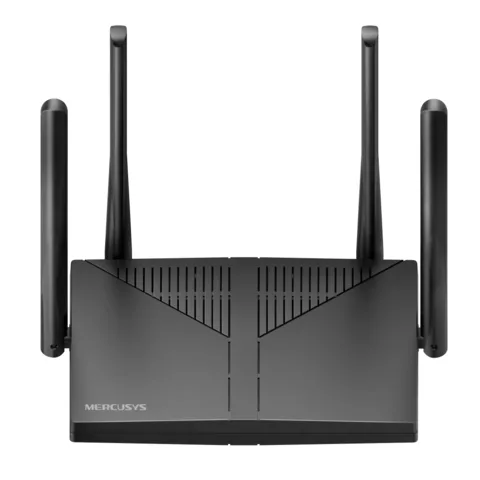
- Sign in
mwlogin.netor192.168.1.1- App
- The MERCUSYS app (iOS and Android)
- Password
- Current models ask you to create an admin password on first login. If you bound the router to a MERCUSYS ID, you sign in with that account. The Wi-Fi name and password on the label are only for joining the network.
- Models
- MR80X, MR70X, MR60X, MR90X, MR30G, MR27BE, MR37BE, MR47BE, Halo H80X, Halo H47BE
Sign in to the Mercusys Wi-Fi router
Factory default. Mercusys says some models use admin as both the default username and password. Change it at once under Advanced › System › Administration.
Connect the Mac to a LAN port, or join the router’s Wi-Fi.
Type
mwlogin.netin the browser’s address bar, not a search box.If the browser warns about privacy, click Advanced and continue. The router uses a self-signed certificate.
Enter your password or MERCUSYS ID and sign in.
If mwlogin.net doesn’t load, try 192.168.1.1 or another browser. A forgotten password can’t be recovered: reset the router to factory settings, then create a new one. That erases all settings.
Restart it properly
Sign in to the web interface.
Go to Advanced › System › Reboot.
Click REBOOT and wait a few minutes.
Schedule a restart
Go to Advanced › System › Reboot.
Tick Enable next to Reboot Schedule.
Set the Reboot Time and how often it should Repeat.
Click SAVE.
The schedule uses the router’s clock. Set the time zone under Advanced › System › Time & Language first.
Update the firmware
Download the firmware for your exact hardware version from Mercusys’s site and unzip it.
Go to Advanced › System › Firmware Upgrade. Some models say Firmware Update.
Click BROWSE, choose the file and click UPGRADE. The router restarts by itself.
Don’t power off the router during an update; the wrong firmware can damage it. Some updates reset the router, so save a backup first under Advanced › System › Backup & Restore. Halo units update in the app under More › Update Halo.
See connected devices
Sign in and open Network Map.
Click Clients to list the connected devices.
Click the edit icon in a device’s Modify column to set a Speed Limit.
In the MERCUSYS app, tap Clients to see online and offline devices.
To block a device, go to Advanced › Security › Access Control, choose Blacklist and add it. The app can also alert you when an unfamiliar device joins.
UPnP and port forwarding
Mercusys routers support UPnP, and it is on by default.
Sign in to the web interface.
Go to Advanced › NAT Forwarding › UPnP.
Toggle it on or off.
UPnP has no password: any app on your network can open a port to the internet, including malware. Turn it off if no game, call or other app needs it, and keep the firmware current. Forward ports by hand under Advanced › NAT Forwarding › Port Forwarding instead.
NAT-PMP
Mercusys’s guides don’t mention NAT-PMP. UPnP is the only automatic port-opening switch.
Prioritise calls and gaming
QoS gives chosen devices more bandwidth for a set time when the line is busy.
Go to Advanced › QoS and tick Enable.
Enter your plan’s upload and download speeds, then click SAVE.
Find the device under Device Priority and toggle Priority on.
Choose how long it stays prioritised under Timing.
A device with a Speed Limit drops off the high-priority list. In the app, QoS is under More › QoS.
2.4 and 5 GHz, and the channel
The MR80X user guide sets each band, 2.4 GHz and 5 GHz, with its own name and password on one page.
Go to Advanced › Wireless › Wireless Settings.
Set the Network Name (SSID) and password for each band.
Untick a band’s checkbox to turn that band off.
Click SAVE.
Change the channel
Go to Advanced › Wireless › Wireless Settings.
Pick a Channel for the band instead of Auto.
Leave Channel Width and Transmit Power at their defaults unless you need otherwise.
Click SAVE.
Mercusys recommends Auto unless your Wi-Fi drops out intermittently.
Mesh: which node a device uses
Many MR routers support EasyMesh, which adds a second router or extender as a satellite. Halo mesh units are set up in the MERCUSYS app instead.
Go to Advanced › EasyMesh and turn on EasyMesh.
Click ADD SATELLITE DEVICES, select Mercusys Router and click NEXT.
Reset the new router, or set it to satellite mode under Advanced › EasyMesh › Change Mode.
Click ADD, wait for the success message, then click FINISH.
Find each satellite and its IP address under Advanced › EasyMesh.
For another brand’s EasyMesh device, select Others and press WPS on both devices within 2 minutes. Mercusys says guest network settings aren’t copied to satellites.
Add a Halo unit
In the MERCUSYS app, open the Network tab and tap the + icon.
Tap Add Network Device, then Halo.
Choose to add it to your current Halo Mesh network and follow the prompts.
Halo units from the same box join on their own within about two minutes. Only the owner’s MERCUSYS ID can add units.
Guest network
Go to Advanced › Wireless › Guest Network.
Turn on the guest network and give it a name.
Choose a Security type and set a password.
Click SAVE.
Under Guest Permissions, leave Allow guests to access my local network unticked so guests can’t reach your own devices.
DNS settings
Go to Advanced › Network › Internet.
Open Advanced Settings and set DNS Address to Use the following DNS addresses.
Enter a Primary DNS and Secondary DNS, then click SAVE.
Restart under Advanced › System › Reboot so the change takes effect.
On a Halo, change DNS in the app under More › Advanced › IPv4 by turning off Obtain DNS Automatically.
Connection status and logs
Go to Advanced › Network › Status for the connection type, WAN IP, gateway and DNS servers.
Go to Advanced › System › System Log and click SAVE TO LOCAL to save the log.
To test the line, open Advanced › System › Diagnostics, choose Ping or Tracert and click START.
If the WAN IP Address shows 0.0.0.0, the router isn’t getting a connection from your modem. Check the cable, then restart the modem before the router.
Manuals and downloads
- Mercusys MR80X user guide (PDF)
- Mercusys Halo H70X user guide (PDF)
- Mercusys MR80X downloads
- Firmware downloads
Links go to the maker’s own pages.
Questions
Why can’t I sign in with my Wi-Fi password?
The web interface uses a separate admin password, or your MERCUSYS ID if the router is bound to one. The Wi-Fi password on the label only joins the network.
Can a Mercusys router and a Halo share one mesh?
No. Mercusys says EasyMesh and Halo Mesh are separate systems that can’t be combined. MR routers mesh with EasyMesh routers and extenders; Halo units join other Halo units in the app.
Sources
- Mercusys: MR80X AX3000 Dual-Band Wi-Fi 6 Router user guide (PDF)
- Mercusys FAQ: How to Log in to the Web Management Page of MERCUSYS Wireless Router
- Mercusys FAQ: How to upgrade a MERCUSYS device to the latest firmware
- Mercusys FAQ: General questions about EasyMesh
- Mercusys FAQ: How to limit the speed of devices connected to the MERCUSYS router
- Mercusys FAQ: Getting to know your MERCUSYS App
- Mercusys FAQ: How to change DNS server settings on MERCUSYS WiFi Router or 5G/4G Router
- Mercusys FAQ: How to change DNS server settings on my Halo
- Mercusys FAQ: How to add a router to an EasyMesh network as a satellite device
- Mercusys FAQ: How to add a Satellite Halo to your Halo network
Checked on 1 November 2026.
See what your router can’t tell you
Kilobat is a Mac menu-bar app that watches the network from your side: which app is using it, whether the Wi-Fi, the router or the provider is slow, and why a call froze.
brew install seifip/kilobat/kilobat