Provider box · Telenet
Telenet modem settings, restart, UPnP and Wi-Fi
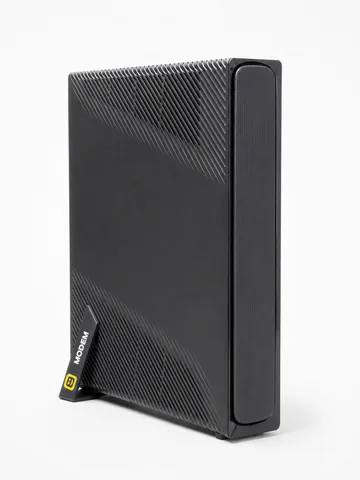
Telenet supplies the modem, or the 360° Fiberbox, for its internet in Belgium. You don’t sign in to the modem itself: you manage it in MyTelenet, under Je thuisnetwerk (Your home network), or in the MyTelenet app.
- Sign in
- MyTelenet at
mijn.telenet.be, under Je thuisnetwerk - App
- MyTelenet (iOS and Android)
- Password
- You sign in with your Telenet login and password, the same as for all Telenet apps and websites. Your login is printed at the top left of your bill. The Wi-Fi name and password are in MyTelenet under Wifi-paspoort (Wi-Fi passport); some modems also have a sticker with the original Wi-Fi details.
- Models
- F@ST3897LG-TN, F@ST3896LG-TN, F@ST5685LGB-TN 360° Fiberbox, CH8568LG, CH7465LG-TN, CH6643E
Sign in to the Telenet modem
Sign in to MyTelenet with your Telenet login.
Open Je thuisnetwerk (Your home network).
Read your network name and password under Wifi-paspoort.
For the modem’s own settings, open Modeminstellingen (Modem settings) or Geavanceerde instellingen (Advanced settings).
In the MyTelenet app, tap Wifi-netwerk, then Netwerkinstellingen (Network settings) under Beheren (Manage).
Expert settings carry a padlock. Click it, tick Ik begrijp het (I understand) and click Ga verder (Continue). Telenet warns that a wrong change can cut your internet. Forgotten your Telenet password? Set a new one from the MyTelenet sign-in page.
Restart it properly
A restart cuts internet and TV for a few minutes. Telenet suggests it when no device connects, or the connection is slow.
Open the MyTelenet app and tap Mijn netwerk (My network) on the home screen.
Go to Instellingen (Settings).
Tap Herstart je modem (Restart your modem).
Don’t press the reset button to restart: holding it for 10 to 15 seconds, depending on the model, restores factory settings.
By hand
Unplug the modem for 15 seconds, along with any Access Point, Powerline, switch or TV box.
Plug the modem back in first and wait up to 2 minutes.
Then plug in the Access Point, Powerline or switch, and the TV box last.
If the modem is already offline, the app can’t restart it, so restart it by hand.
Schedule a restart
Telenet documents no scheduled restart.
Update the firmware
Telenet updates the modem itself and documents no manual update. A pulsing green light on the newest modems, or blinking blue lights after a restart on older ones, means an update is running: don’t unplug it then.
See connected devices
Open the MyTelenet app and go to your home network.
You see every Telenet device connected directly to the network.
Tap a device to see the phones, laptops and other devices connected to it.
Each device shows its IP address and MAC address.
In MyTelenet’s modem settings, Verbonden gebruikers (Connected users) shows how many and which devices are connected. A device that doesn’t appear in the app shows up within 10 minutes after you unplug and reconnect it.
UPnP and port forwarding
Telenet’s modem settings include UPnP, which lets devices such as a PlayStation forward ports automatically. Telenet’s help pages don’t say whether it is on by default.
Sign in to MyTelenet and open Je thuisnetwerk (Your home network).
Click Geavanceerde instellingen (Advanced settings).
Open the Netwerk (Network) section, which shows the LAN configuration, UPnP and the WAN address.
Check or change the UPnP setting there.
UPnP lets any device on your network open ports without asking, which malware can abuse. Telenet says changes to the advanced settings are at your own risk. If you use your own router, Telenet supports bridging on several modems, under the Netwerk tab.
Port forwarding
In Geavanceerde instellingen, open IPv4 firewall & Port forwarding.
Add a rule that forwards a port to a fixed internal IP address.
Telenet aims port forwarding at advanced users running their own server. IPv6 firewall rules have a separate section on modems that support IPv6.
NAT-PMP
Telenet’s help pages document no NAT-PMP setting.
Prioritise calls and gaming
Telenet’s help pages document no QoS or device-priority setting on its modems.
2.4 and 5 GHz, and the channel
The F@ST3896LG-TN and newer modems switch between 2.4 and 5 GHz by themselves and don’t let you change the signal settings. Only the CH6643E, CH7465LG-TN and CH8568LG do.
In MyTelenet, open Modeminstellingen (Modem settings).
Unlock Signaal (Signal) with the padlock.
Read or change the Wifi-frequentie (Wi-Fi band); Telenet recommends keeping both bands on.
Save your change.
Telenet documents no switch for separate 2.4 and 5 GHz network names.
Change the channel
Under Signaal, choose a Wifi-kanaal (Wi-Fi channel).
Leave Wifi-kanaalbreedte (channel width) and Wifi-standaard on their defaults.
Telenet advises leaving the channel on automatic. On a F@ST modem you can’t change it.
Mesh: which node a device uses
Telenet 360° Wifi uses wifi-pods with a Telenet 360° Modem. It doesn’t work with older Telenet boosters, Powerlines or Access Points, which Telenet asks you to return.
Open the MyTelenet app and tap Start installatie (Start installation) in the notice, then follow the steps.
When the modem light is white and the pod shows no light, the pod is installed.
To name a pod, open Mijn Producten (My products) and select your Wi-Fi network.
Select the pod, tap the pencil and give it a name like “Living” or “Zolder”.
The pods take the modem’s network name and password automatically and choose the best Wi-Fi source for each device. Telenet advises no more than 2 or 3 rooms between pods.
Guest network
Telenet’s help pages document no separate guest network. Instead, the app shares your own Wi-Fi with a QR code.
Open the MyTelenet app and go to Wifi-netwerk.
Tap Delen (Share).
Let your guest scan the QR code to join without typing the password.
DNS settings
Telenet’s help pages document no setting for the DNS servers the modem hands out. Set DNS on the Mac instead.
Connection status and logs
Check the light. On current modems, steady white means all is well and red means a fault.
In the MyTelenet app, tap Diagnose under Beheren (Manage) to check Telenet’s network, the line and the modem.
Under Beheren, Speedtest measures the speed between your device and the network.
In MyTelenet’s modem settings, Modemtesten (Modem tests) runs a speed test and an IPv6 test.
The Netwerk section of Geavanceerde instellingen shows the modem’s WAN address. Telenet documents no event log.
Manuals and downloads
- Telenet: Alles over je Telenet-modem
- Telenet: Geavanceerde instellingen van je wireless modem
- Telenet: Telenet 360° Wifi installeren
Links go to the maker’s own pages.
Questions
Is there a local address like 192.168.0.1 to sign in?
Telenet’s help pages send you to MyTelenet and the MyTelenet app for every setting, and don’t document a local sign-in page.
Why can’t I change the Wi-Fi channel?
On the F@ST3896LG-TN and newer modems, Telenet lets the modem choose the channel and band itself. Only the CH6643E, CH7465LG-TN and CH8568LG allow manual signal settings.
Sources
- Telenet: Alles over je Telenet-modem
- Telenet: Geavanceerde instellingen van je wireless modem
- Telenet: Hoe mijn draadloos internet instellen?
- Telenet: Hoe herstart ik mijn modem?
- Telenet: Waar staan je wifi-gegevens?
- Telenet: De Telenet-app in detail
- Telenet: Telenet 360° Wifi installeren
Checked on 1 November 2026.
See what your router can’t tell you
Kilobat is a Mac menu-bar app that watches the network from your side: which app is using it, whether the Wi-Fi, the router or the provider is slow, and why a call froze.
brew install seifip/kilobat/kilobat