Provider box · Proximus
Proximus Internet Box settings, restart, port forwarding and Wi-Fi
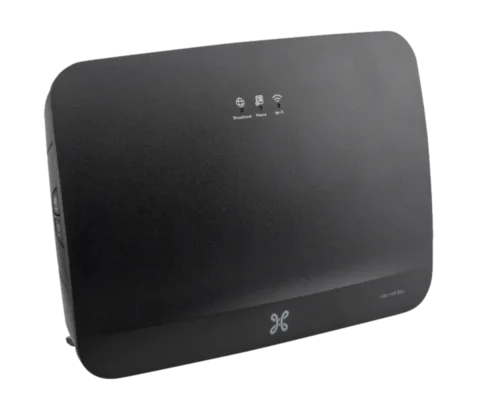
The Internet Box is the Wi-Fi 6 modem Proximus supplies in Belgium, followed by the Internet Box+ and Internet Box+ 7. It has no local settings page: you manage it from MyProximus at proximus.be/myinternet or in the Proximus app.
- Sign in
- MyProximus at
proximus.be/myinternet - App
- Proximus app (iOS and Android)
- Password
- You sign in with your MyProximus account. The Internet Box has no settings password of its own, and its Wi-Fi details aren’t printed on it: Proximus sends them by text message, and they are in MyProximus. On a b-box 3/3V+, the settings password is on the sticker beside User password or Modem password.
- Models
- Internet Box, Internet Box+, Internet Box+ 7, b-box 3V+
Sign in to the Internet Box
Sign in to MyProximus on the web.
Go to your Internet product.
Scroll down to Advanced Settings for the box’s settings.
In the Proximus app, tap MyProximus, your Internet subscription, then Advanced Internet Settings › Internet Box Settings.
Proximus asks you to change the advanced settings only if you understand their impact. On a b-box 3/3V+, open http://192.168.1.1, choose User as the user name and enter the sticker password.
Restart it properly
Press the on/off button at the back of the Internet Box. The lights at the front go out.
Wait 10 seconds.
Press the button again to switch it back on.
Wait until the Internet/broadband and Wi-Fi lights stay on.
Don’t use the reset button to restart. Holding it for about 20 seconds resets the Internet Box, which can take 10 to 45 minutes before the Wi-Fi and Internet lights are blue again.
With a fibre modem
If a cable runs from the box’s red port to a separate fibre modem, restart the devices in order.
Restart the fibre modem first, then the Internet Box.
Then restart any Wi-Fi Booster or PLC adapter, and the TV box last.
Wait 5 minutes, then try the internet again.
Schedule a restart
Proximus documents no scheduled restart.
Update the firmware
Proximus manages the Internet Box from the cloud and documents no manual firmware update or version page.
See connected devices
Open the Proximus app and tap Internet › Manage your devices.
The list shows devices connected in the last 7 days; a green dot marks those online now.
Tap the icon to the right of a device’s name to see its connection status and MAC address.
Rename the device there, or suspend its Wi-Fi for a time you choose.
iPhones and iPads with a private Wi-Fi address may not appear. Proximus suggests turning off Private Wi-Fi Address for your home network in the device’s Wi-Fi settings.
UPnP and port forwarding
Proximus’s help pages document no UPnP switch for the Internet Box. They document manual port forwarding instead, in MyProximus.
Sign in to MyProximus, click your Internet product and choose Internet Box settings.
Select the Firewall tab and click Add IPv4 port forwarding.
Choose the protocol, such as TCP, and enter the port number.
Enter the IP address of the device that needs the port, and click OK.
Proximus warns that opening or forwarding ports exposes your network to attacks from the internet, and its technical service gives no support for port forwarding. Open only the ports a device needs.
Open ports Proximus blocks
Proximus closes TCP ports 23, 80, 443, 992, 8023, 8080 and 8443 by default. Some others, such as 25 and 445, can’t be opened at all.
In MyProximus, click your Internet subscription.
In the Network ports configuration box, select Advanced mode and confirm.
Switch the Internet Box off for 6 minutes, then on again.
NAT-PMP
Proximus documents no NAT-PMP setting.
Prioritise calls and gaming
Proximus documents no QoS or device-priority setting on the Internet Box. The app can only suspend a device’s Wi-Fi.
2.4 and 5 GHz, and the channel
The Internet Box uses the newer Wi-Fi security standards (WPA3 and PMF). For older devices that can’t join, Proximus offers a separate Limited Network.
Sign in at
proximus.be/myinternetand go to Manage Wi-Fi.Turn on Limited Network.
If it isn’t shown, open Frequency band and security protocol, choose WPA3-Personal transition and save.
Check the prefilled name and password; the name must contain the word “Limited”.
Click Save and connect only the older devices to it.
Proximus says the limited network has lower performance and security, so use it only for devices that can’t join the main network.
Change the channel
Proximus documents no manual channel setting; Smart Wi-Fi manages the Wi-Fi itself.
Mesh: which node a device uses
The Internet Box supports EasyMesh and works with Proximus’s Wi-Fi Booster, which also lets you connect a TV box without a cable.
Open the Proximus app and go to Internet.
To order a booster, scroll down to Add a Wi-Fi Booster and tap Order.
To install one, scroll down to Install a Wi-Fi Booster and follow the online guide.
Follow the app’s Wi-Fi tips, such as “Install a Wi-Fi Booster” for weak rooms.
Proximus documents no band-steering switch. Smart Wi-Fi is always on with an Internet Box.
Guest network
Proximus’s help pages document no guest network on the Internet Box. The app shares your own Wi-Fi with a QR code instead.
Open the Proximus app and tap Internet › Share my Wi-Fi.
Let your guest scan the QR code with their phone to copy the Wi-Fi details.
DNS settings
Proximus documents no setting for the DNS servers the Internet Box hands out. Set DNS on the Mac instead.
Connection status and logs
Check the lights on the front. Internet/broadband and Wi-Fi should stay lit.
In the Proximus app, go to Products and scroll down to Performance test.
Tap Start to test the speed of your device’s connection.
Or run the speed test on
proximus.beand read the tips below it.
For a fair result, Proximus suggests testing when no one else is watching TV or surfing. Proximus documents no event log for the Internet Box.
Manuals and downloads
Links go to the maker’s own pages.
Questions
Can I open 192.168.1.1 on an Internet Box?
No. The local menu at 192.168.1.1 belongs to the older b-box 3 and 3V+. The Internet Box is managed in MyProximus and the Proximus app.
Why can’t I open port 443 or 80?
Proximus blocks them by default. Choose Advanced mode under Network ports configuration in MyProximus, then switch the box off for 6 minutes.
Sources
- Proximus: Password for your b-box/Internet Box and your internet connection
- Proximus: Port forwarding on your b-box or Internet Box
- Proximus: How to restart your devices for Internet and TV?
- Proximus: Restart your Proximus devices (Internet Box+ 7 and fibre modem)
- Proximus: Reset your b-box/Internet Box
- Proximus: Manage your Wi-Fi with the app
- Proximus: Some devices can’t connect to Wi-Fi with an Internet Box
- Proximus: Your Internet Box and Wi-Fi Booster v2
- Proximus: Test your internet speed
- Proximus: Connect to Wi-Fi, network name and password
Checked on 1 November 2026.
See what your router can’t tell you
Kilobat is a Mac menu-bar app that watches the network from your side: which app is using it, whether the Wi-Fi, the router or the provider is slow, and why a call froze.
brew install seifip/kilobat/kilobat