Provider box · Orange Polska
Orange Polska Funbox login, restart, Wi-Fi networks and eco modes
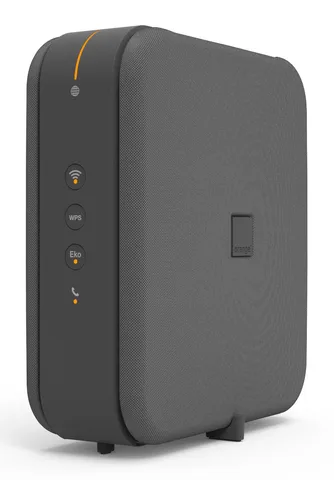
The Funbox is the fibre modem router Orange supplies in Poland. You manage it in a browser at http://funbox, or remotely in the Mój Orange app and on orange.pl.
- Sign in
funboxor192.168.1.1- App
- Mój Orange (iOS and Android) and Mój Orange on orange.pl
- Password
- Orange’s Funbox 10 guide doesn’t state a default admin password; follow the on-screen instructions on first sign-in. The sticker underneath shows the admin address, the Wi-Fi name
Orange_Swiatlowod_XXXX, the Wi-Fi key and a Wi-Fi QR code. - Models
- Funbox 10, Funbox 7, Funbox 6, FunBox 3.0, FunBox 2.6
Sign in to the Funbox
Connect your Mac to the Funbox by Ethernet or over the Wi-Fi network on the sticker.
Open
http://funboxor192.168.1.1in your browser.Sign in and follow the on-screen instructions.
If asked for the internet login and password, use the ones on your Orange contract.
Forgotten the admin password? Use Nie pamiętam hasła (I forgot my password) on the sign-in screen. The internet login and password are separate: Orange prints them on your contract.
Change the admin password
Open Ustawienia zaawansowane (Advanced settings).
Choose the Hasło (Password) tile.
Enter the current password, then the new one.
Restart it properly
Orange documents a restart from Mój Orange as well as the power button at the back.
Open Mój Orange and tap Wi-Fi i sieć domowa (Wi-Fi and home network).
Go to the Urządzenia (Devices) tab and tap your modem’s name.
On Ustawienia i szczegóły modemu (Modem settings and details), tap the restart button.
Wait about 3 minutes until the Internet and Wi-Fi lights are orange.
Hold the Reset button for 10 seconds only if you mean to restore factory settings: that erases your changes. The same reset is under Wsparcie › Ustawienia fabryczne (Support › Factory settings).
With the power button
Switch the Funbox off with the power button on the back.
Switch it back on and wait about 3 minutes for the orange Internet and Wi-Fi lights.
Schedule a restart
Orange documents no scheduled restart. The schedule (harmonogram) in the Funbox 10 menu only switches eco and sleep modes.
Update the firmware
Orange Polska’s help pages describe no firmware version page or manual update for the Funbox.
See connected devices
Open Mój Orange and go to Internet domowy (Home internet).
Tap Zarządzanie Wi-Fi (Wi-Fi management) and wait while it loads.
Open the list of connected devices and tap one for its details.
On orange.pl, sign in to Mój Orange and click Zobacz szczegóły (See details) in the Zarządzanie Wi-Fi section. Orange says the Mój FunBox app can also show how many devices use your network and set Wi-Fi schedules.
UPnP and port forwarding
Orange Polska’s help pages document no UPnP IGD or NAT-PMP setting on the Funbox, and no port-forwarding steps.
Prioritise calls and gaming
Orange Polska documents no QoS or device-priority setting on the Funbox.
2.4 and 5 GHz, and the channel
Orange’s Smart Wi-Fi on the Funbox 10, 6 and 3 picks the band and channel for each device automatically, under one network name.
Orange documents no way to give the bands separate names or choose a channel by hand.
Eco mode (2.4 GHz only)
Press the Eko button twice within 2 seconds; its light flashes orange.
Press Eko once to turn eco mode off again.
In eco mode Wi-Fi uses only 2.4 GHz, so some devices, such as an Orange TV box, stop working. Holding Eko for 5 seconds starts sleep mode, which turns off internet, Wi-Fi, TV and phone.
Mesh: which node a device uses
Orange’s Smartbox Wi-Fi 6 extender works with the Funbox under the same network name and moves devices to the stronger signal as you walk around.
Order a Smartbox Wi-Fi 6 from Orange, with a new contract or at any time during one.
Use the Mój FunBox app, which Orange says suggests where to place it.
Orange’s help pages don’t show a mesh map or a way to see which access point a device uses.
Guest network
The Funbox 10 has a guest network, Orange_Gosc_XXXX, and a separate IoT network, Orange_IoT_XXXX, both isolated from your main network.
Open Mój Orange and go to Internet domowy › Zarządzanie Wi-Fi.
Turn on the guest network (Sieć dla Gościa).
Tap Kod QR sieci (Network QR code) to share its password with guests.
Guest devices only get internet and can’t see each other. Don’t connect Orange TV boxes to the guest network. You can also dedicate one Ethernet port to the IoT network under Wi-Fi › Wi-Fi dla IoT in the Funbox menu.
DNS settings
Orange Polska’s help pages document no DNS setting on the Funbox. Set DNS on the Mac instead.
Connection status and logs
Check the front lights; orange Internet and Wi-Fi lights mean the Funbox is online.
If they aren’t orange after 3 minutes, open Ustawienia zaawansowane › Połączenie z internetem (Internet connection).
Enter the internet login and password from your contract there.
Use Mój Orange or Mój FunBox to diagnose the network if problems remain.
A Funbox 10 also has a Diagnostyka (Diagnostics) button on the back. Orange documents no event log page.
Manuals and downloads
Links go to the maker’s own pages.
Questions
Which password does the Funbox ask for when the internet light isn’t orange?
Your internet service login and password, printed on your Orange contract. Enter them under Ustawienia zaawansowane › Połączenie z internetem.
Why did my TV box lose its connection?
Eco mode may be on. It limits Wi-Fi to 2.4 GHz, which some devices, such as the Orange TV box, can’t use. Press Eko once to turn it off.
Sources
- Orange Polska: Funbox 10
- Orange Polska: Funbox 10 instrukcja (PDF)
- Orange Polska: Zarządzanie siecią Wi-Fi w Mój Orange
- Orange Polska: Smart Wi-Fi od Orange, stwórz inteligentną sieć w swoim domu
- Orange Polska: Pomoc techniczna, internet domowy
Checked on 1 November 2026.
See what your router can’t tell you
Kilobat is a Mac menu-bar app that watches the network from your side: which app is using it, whether the Wi-Fi, the router or the provider is slow, and why a call froze.
brew install seifip/kilobat/kilobat