Provider box · Elisa
Elisa modem login, restart, firmware and UPnP
Elisa supplies Zyxel modems and routers with its home broadband in Finland, such as the Wi-Fi 6 EX5501 router and the DX3300-T0 DSL modem. You manage them in a browser at 192.168.1.1; Elisa says DX3300-T0 settings can also be changed remotely through OmaElisa.
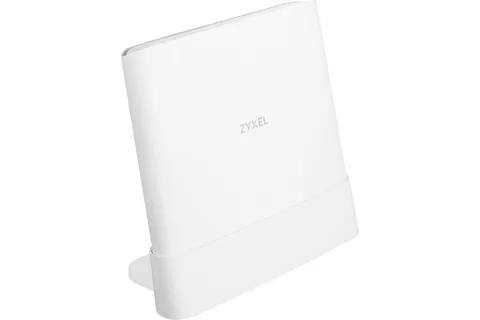
- Sign in
192.168.1.1- App
- OmaElisa (remote management)
- Password
- The user name is
admin. The password is on the label on the back of the device, next to Login Password; the Wi-Fi name and key are on the info card or the label underneath. - Models
- Zyxel EX5501, Zyxel DX3300-T0
Sign in to the Elisa modem (Zyxel)
Connect your Mac to the modem with an Ethernet cable or by Wi-Fi.
Open
http://192.168.1.1in your browser.Enter
adminand the Login Password from the label, then log in.The first time, set a new password and click Apply.
Forgotten the password? Press the reset button on the back for about 10 seconds with a straightened paper clip. That restores the label password and factory settings. Elisa’s TP-Link VX800v uses 192.168.100.1 instead.
Restart it properly
Sign in and click the Restart icon at the top right of the navigation panel.
Or open Maintenance › Reboot and click Reboot.
Wait a few minutes until the Internet light is lit again.
Elisa recommends a factory reset if problems continue after a software update, because old settings can linger until a reset.
Power cycle
Switch the modem off for about 10 seconds.
Switch it back on and wait for the connection to return.
Schedule a restart
Elisa and Zyxel document no scheduled restart for these models.
Update the firmware
Elisa sends new software to DX3300-T0 modems bought from Elisa automatically; keep automatic updates on in the device settings. Elisa says no software updates are available for the EX5501.
Sign in, open Connection Status and click the arrow on System Info to see the Firmware Version.
Compare it with the version list on Elisa’s page for your model.
Leave the modem on; a blinking red power light on the DX3300 means an update is running.
Zyxel’s guide describes manual uploads under Maintenance › Firmware Upgrade, but Elisa doesn’t publish firmware files for its modems.
See connected devices
Sign in and open Connection Status.
On the Connectivity card, click the arrow to see the IP and MAC addresses of wired and wireless devices.
Hover over a device and click its edit icon to change its name or icon, then click Save.
For Wi-Fi details, open System Monitor › WLAN Station Status.
UPnP and port forwarding
The Zyxel firmware supports UPnP IGD 1.0. UPnP lets devices discover the router; UPnP NAT-T lets apps open ports themselves. Both are separate switches.
Sign in and open Network Setting › Home Networking › UPnP.
Switch UPnP on or off.
Switch UPnP NAT-T on if games or apps should open ports automatically.
Click Apply. Ports opened by apps appear in the table on the same screen.
Zyxel warns that anyone could use a UPnP app to open the Web Configurator’s login page to the internet, and that UPnP devices talk freely to each other. Turning on WPS also turns UPnP on. Leave UPnP NAT-T off unless something needs it.
NAT-PMP
Zyxel’s guide documents UPnP IGD only, not NAT-PMP.
Fixed port forwards
Open Network Setting › NAT › Port Forwarding and add a rule for the device and ports.
Prioritise calls and gaming
Sign in and open Network Setting › QoS › General.
Enable QoS and set the WAN Managed Upstream Bandwidth, or leave it empty to use the line rate.
Pick how Upstream Traffic Priority is assigned, or None to use your own rules.
Add rules under Queue Setup and Classification Setup if needed, then click Apply.
Elisa’s own pages don’t cover QoS; these paths come from Zyxel’s guide.
2.4 and 5 GHz, and the channel
With Keep the same settings for 2.4G and 5G wireless networks selected, both bands share one name and password. Clear it to give each band its own network.
Sign in and open Network Setting › Wireless › General.
Clear Keep the same settings for 2.4G and 5G wireless networks.
Set a name and password for each Band, then click Apply.
Change the channel
In Network Setting › Wireless › General, choose a Channel, or Auto.
Click Apply.
To see which channels are busy, run a scan under Wireless › Channel Status.
Elisa says some Wi-Fi adapters handle automatic channel changes badly; if Wi-Fi keeps dropping, set a fixed 2.4 GHz channel between 1 and 11.
Mesh: which node a device uses
Elisa’s Kotiverkko (home network) service adds Huawei K572 mesh extenders, set up on their own admin page.
Plug in the first extender and connect it to the modem’s LAN port with an Ethernet cable.
Join the extender’s Wi-Fi; the name and password are on the label underneath.
Open
https://192.168.100.1, orhttps://192.168.101.1behind a modem, and accept the browser warning.Enter the password from the extender’s label; network setup starts automatically.
The Zyxel firmware also has Network Setting › Wireless › MESH for Zyxel MPro Mesh extenders, with band and AP steering.
Guest network
Sign in and open Network Setting › Wireless › Guest/More AP.
Click the edit icon next to a spare network.
Tick Guest WLAN and choose External Guest so guests can’t reach each other.
Set the name and password, then click OK.
Guest networks reach the internet only, not your home devices. The Connection Status page also has a quick guest Wi-Fi switch.
DNS settings
Sign in and open Network Setting › Home Networking › LAN Setup.
Under DNS Values, set DNS to Static.
Enter DNS Server 1 and DNS Server 2, which the modem hands to your devices.
Click Apply.
The DNS fields only appear while the DHCP server is enabled. A wrong address cuts off name lookups for every device.
Connection status and logs
Check the Internet light; blue on the DX3300 means connected, red means an internet fault.
Open System Monitor › Log › System Log for events such as connection drops.
On a DSL line, open System Monitor › xDSL Statistics for sync rates and errors.
Use Maintenance › Diagnostic for ping, traceroute and nslookup tests.
For faults, Elisa’s Verkkoapuri (network helper) checks known problems in your area.
Manuals and downloads
- Elisa: Zyxel EX5501 -ohjeet
- Elisa: Zyxel EX5501 user’s guide (PDF, English)
- Elisa: Zyxel DX3300-T0 -modeemin ohjeet
- Elisa: Laajakaistamodeemien ohjeet
Links go to the maker’s own pages.
Questions
Which address is my Elisa modem on?
The Zyxel EX5501 and DX3300-T0 use 192.168.1.1. Other Elisa devices differ, for example 192.168.100.1 on the TP-Link VX800v; the label shows the address and password.
Should I bridge my Elisa modem?
Elisa advises against it unless you need to. Bridged, the modem passes all traffic to your devices, and only four public IP addresses remain for them.
Sources
- Elisa: Zyxel EX5501 -ohjeet
- Elisa: Zyxel DX3300-T0 -modeemin ohjeet
- Elisa: TP-Link VX800v -ohjeet
- Elisa: Elisa Kotiverkko -palvelun (Elisa Wifi) ohjeet
- Elisa: Laajakaistamodeemien ohjeet
- Elisa: Zyxel AX/DX/EX/PX series user’s guide for the EX5501 (PDF)
- Elisa: Zyxel EX5501 quick start guide (PDF)
Checked on 1 November 2026.
See what your router can’t tell you
Kilobat is a Mac menu-bar app that watches the network from your side: which app is using it, whether the Wi-Fi, the router or the provider is slow, and why a call froze.
brew install seifip/kilobat/kilobat