Provider box · Chunghwa Telecom HiNet
Chunghwa Telecom HiNet Wi-Fi全屋通 login, restart, devices and Wi-Fi
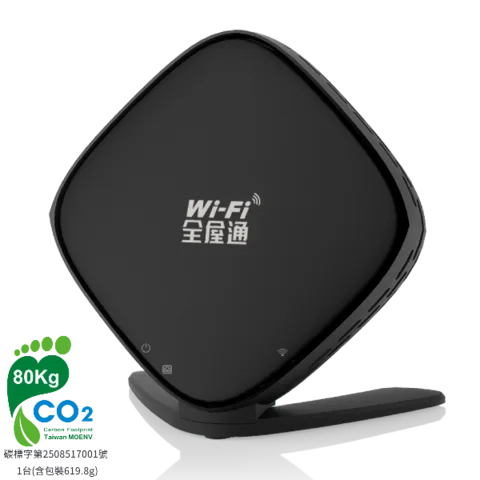
Wi-Fi全屋通 (whole-home Wi-Fi) is the mesh Wi-Fi access point Chunghwa Telecom rents to HiNet 光世代 (fibre) customers, plugged into the HiNet fibre modem. You manage it in the 中華電信Wi-Fi全屋通 app or in a browser at mymeshdevice.home.
- Sign in
mymeshdevice.homeor192.168.0.1- App
- 中華電信Wi-Fi全屋通 (iOS and Android), used while the phone is on the Wi-Fi全屋通 network.
- Password
- The Wi-Fi name (
CHT Wi-Fi Home-and three characters on the WX3400-T0) and Wi-Fi key are on the label on the back. The admin password, which the app calls the 管理者密碼 (Administrator password), is a separate thing. - Models
- Zyxel WX3400-T0, Arcadyan WG620443-TC, Arcadyan WG630223-TC, Arcadyan WE410443-TC, Arcadyan WG420223-TC
Sign in to the Wi-Fi全屋通
Factory default. Chunghwa Telecom’s guides give user name user and password user for the browser, and user for the app. The browser makes you choose a new password the first time; change the app password too.
Join the Wi-Fi全屋通 network, not a guest network, or plug into the access point’s LAN port.
Open
https://mymeshdevice.homein a browser, orhttps://192.168.0.1on the WX3400-T0.Enter the Username and Password, type the verification code shown, and sign in.
On the first sign-in, set your own password on the Update Password page.
In the app, enter the 管理者密碼. To change it later, tap 設定 › 變更管理者密碼 (Settings › Change administrator password).
Forgotten the admin password? Hold the WPS button on an Arcadyan unit for over 6 seconds, or Reset on the WX3400-T0 for 5–10 seconds, to restore user. Holding Reset for 10 seconds or more is a factory reset. The app can turn off the WPS password reset under 變更管理者密碼.
Restart it properly
Open the app and tap 設定 › 設備重啟 (Settings › Restart devices).
Tap the network name to restart every access point on it.
Tap 確認 (Confirm) and wait for the restart.
Reconnect to the Wi-Fi and sign in to the app again.
A restart cuts the Wi-Fi for everyone. Don’t hold the reset or WPS buttons to restart: they reset the password or the whole unit.
Restart one access point
On the 網路拓樸 (Network topology) tab, tap the access point.
Tap 設備重啟 (Restart device), then 確認.
Schedule a restart
Tap 設定 › 設備重啟, then + or the network name.
Switch it to 開啟 (On).
Choose the repeat, start date and restart time.
The page then shows the next restart time.
Power-cycle the modem and Wi-Fi
Switch off the fibre modem and the Wi-Fi access point.
Wait at least 30 seconds.
Switch on the modem first and wait one minute.
Switch on the Wi-Fi access point and check that the lights turn green or blue.
Update the firmware
Chunghwa Telecom documents no way to check or install firmware yourself. Updates arrive on their own: the front light flashes purple on the Arcadyan Wi-Fi 6 units, and Power flashes red on the WX3400-T0, while one installs. Leave the power on.
See connected devices
Open the app and tap 裝置 (Devices) at the bottom.
Tap a device to see its connection details.
Tap 修改名稱 (Rename) to give it a name you’ll recognise.
To see devices on one access point, tap it on 網路拓樸, then the connection count.
Devices are told apart by MAC address. Phones using a private Wi-Fi address can show up under a strange name, and blocks or time limits may miss them.
Block a device
Tap 設定 › 黑名單管理 (Settings › Blacklist).
Tap + or 新增黑名單 (Add to blacklist).
Choose the device and save.
A blacklisted device can never join that network. To lift it, tap the padlock beside it.
UPnP and port forwarding
Chunghwa Telecom’s app manual and quick guides for the Wi-Fi全屋通 units describe no UPnP setting, and no NAT-PMP either.
Prioritise calls and gaming
There is no QoS or device priority setting. The app can only limit when devices go online.
Limit a device’s online time
Tap 設定 › 上網時間管理 (Settings › Online time management) and switch it on.
Tap 新增時間管理時段 (Add a time period).
Choose the devices, then tap 下一步 (Next).
Name the period, pick the days and the start and end times, and tap 儲存 (Save).
限時隔離管理 (Timed isolation) cuts off chosen devices straight away for a set time.
2.4 and 5 GHz, and the channel
The access points pick the channel themselves from signal strength and traffic. Chunghwa Telecom’s own walkthrough shows the app running 2.4 GHz and 5 GHz under one name or separately.
Open the app and tap 設定 › Wi-Fi管理 (Settings › Wi-Fi management).
Tap 更改設定 (Change settings) beside the main network.
Switch the 2.4GHz or 5GHz band on or off.
To rename the network or change its key, tap 詳細設定 (Details), edit, and tap 儲存.
Change the channel
Sign in at
https://mymeshdevice.home.Click Settings › Wireless.
On Wireless Settings, set the 2.4GHz or 5GHz channel and channel width, then save.
Checked on the Arcadyan WG620443-TC and WG630223-TC guides only.
Mesh: which node a device uses
Open the app; the 網路拓樸 tab shows the modem and every access point under it.
Tap an access point to see its signal strength, device info and connected devices.
Check the light on each extra unit for its link to the main one.
On extra units, solid blue or green means better than −65 dBm, orange or green −65 to −78 dBm, solid red weaker, and flashing red disconnected. Colours differ by model.
Add an access point
As the Arcadyan guides describe it; the WX3400-T0 guide pairs extra units over a cable first, then you move them.
Plug the new unit in near the main one and switch it on.
Press WPS on the main unit, then on the new one, within two minutes.
Wait for the light to turn solid blue, then move the new unit to its spot.
If an extra unit stays red, connect it to the modem with a cable until it pairs, then move it back. A Wi-Fi 6 4T4R system takes up to four units, Wi-Fi 6E up to two.
Guest network
Sign in at
https://mymeshdevice.home.Click Settings › Guest Network.
Set the guest network name, security type and key, then save.
Guests are kept apart from your own network. Phones on a guest network can’t open the app. Chunghwa Telecom’s walkthrough shows up to three guest networks in the app’s wireless list.
DNS settings
Chunghwa Telecom documents no DNS setting for the Wi-Fi全屋通 units or the fibre modem. Set DNS on the Mac instead.
Connection status and logs
Sign in at
https://mymeshdevice.home; the Status page opens first with the network layout and its state.In the app, 網路拓樸 shows whether each access point is online.
Check the modem lights; solid green or blue is normal, red means a fault.
For a line fault, tap 設定 › 故障報修 (Settings › Report a fault) to report it online.
A red light on the modem, or on the main access point after you have checked its cable, needs Chunghwa Telecom support on 0800-080-123. The guides describe no event log.
Manuals and downloads
- Wi-Fi全屋通 App user manual and troubleshooting Q&A (PDF)
- Zyxel WX3400-T0 quick installation guide (PDF)
- Arcadyan WG620443-TC quick installation guide (PDF)
- 家用網路故障自檢指南 (Home network troubleshooting guide, PDF)
Links go to the maker’s own pages.
Questions
Is user the same as my Wi-Fi password?
No. user is the default admin password for the app and the browser settings. The Wi-Fi key is printed on the label on the back of the access point.
How do I change the Wi-Fi key on a modem with built-in Wi-Fi?
Chunghwa Telecom’s guide says to find the modem’s IP address in your network details, open it in a browser and sign in with user and user. It shows the screens for older modems such as the I-040GW.
I’ve forgotten my HiNet connection password. Where do I reset it?
That is the PPPoE account password, not a router password. Reset it at my.cht.com.tw/HiNetReset.
Sources
- Chunghwa Telecom: Wi-Fi全屋通 App user manual and troubleshooting Q&A, Ver. 115-02 (PDF)
- Chunghwa Telecom: Zyxel WX3400-T0 quick installation guide (PDF)
- Chunghwa Telecom: Arcadyan WG620443-TC quick installation guide (PDF)
- Chunghwa Telecom: Arcadyan WG630223-TC quick installation guide (PDF)
- Chunghwa Telecom: 家用網路故障自檢指南 (Home network troubleshooting guide, PDF)
- Chunghwa Telecom: 更改家用Wi-Fi金鑰之設定方式 (Changing the home Wi-Fi key, PDF)
- Chunghwa Telecom: Wi-Fi全屋通 product page and models
- Chunghwa Telecom: HiNet光世代 + Wi-Fi全屋通 walkthrough
- Chunghwa Telecom: 固網寬頻常見問題 (Broadband FAQ)
Checked on 1 November 2026.
See what your router can’t tell you
Kilobat is a Mac menu-bar app that watches the network from your side: which app is using it, whether the Wi-Fi, the router or the provider is slow, and why a call froze.
brew install seifip/kilobat/kilobat