Provider box · Telia
Telia Wifi-router login, restart, ports and band steering
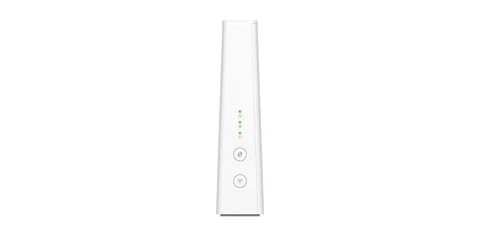
Telia supplies its own Wifi-router, currently the F1, with fibre broadband in Sweden; many homes still have a Sagemcom F@st 5370e or Technicolor TG799. You manage it in a browser at 192.168.1.1, or the Wi-Fi basics in the Telia Smart Control app.
- Sign in
192.168.1.1or192.168.1.254- App
- Telia Smart Control (iOS and Android)
- Password
- The user name is
Administrator, with a capital A; if that fails, tryadmin. The password is the router’s Access key (on the F1 also called Web admin password), printed on the label underneath or on the back. It is unique to each router. - Models
- Telia F1 (Smart Wifi Router), Sagemcom F@st 5370e, Technicolor TG799vac Xtream, Technicolor TG799vac, TG799v2
Sign in to the Telia Wifi-router
Connect your Mac to the router by Wi-Fi or an Ethernet cable.
Open
http://192.168.1.1in your browser. On a TG799, try192.168.1.254if it doesn’t load.Enter
Administratorand the access key from the label.Click Sign in. On the F1, choose whether to change the password now or later.
Click Advanced interface on the F1 or TG799 to see every setting.
Forgotten the password? Hold the reset button for about 15 seconds until the lights go out. That erases your settings, including the Wi-Fi name and password, and a fibre router can take up to 30 minutes to reload its software.
Restart it properly
Sign in to the F1 and open the System Info card.
Under Configuration, click Restart.
Wait a few minutes until the Internet lamp is green again.
Telia’s Fixa tool on telia.se can also troubleshoot and report faults for you. Don’t use Reset or the reset button to restart: both restore factory settings.
With the power switch
Switch the router off with its on/off button, or unplug the power.
Wait a few seconds, switch it back on and wait until the Internet lamp is steady green.
Schedule a restart
Telia documents no scheduled restart.
Update the firmware
Telia’s help pages describe no manual update. On the F1, a flashing orange status lamp means it is in software change mode; on the TG799v2, a flashing green lamp means an upgrade is running. Leave the router on until it finishes.
See connected devices
Sign in to the F1 and click the Devices card.
Choose Devices List for each device’s details, or Global Information for an overview.
To fix a device’s IP address, open Local Network and click Add new static lease.
Enter the Hostname, MAC address and IP, then save.
UPnP and port forwarding
Telia’s Swedish help pages document no UPnP IGD or NAT-PMP switch. Telia’s F1 user guide says UPnP and NAT-PMP are off in the factory configuration but doesn’t show where to turn them on.
Each open port lets traffic from the internet reach a device directly; open only what a game or app needs. Telia blocks ports 25, 53, 135–139 and 445 in its network, and more on its Wifi-routers.
Open ports on a Sagemcom F@st 5370e
Sign in at
192.168.1.1and click Access Control, then the Port Forwarding tab.Enter a Custom Service name and set Service to Other.
Pick the Protocol and the Internal Host (the device’s IP or MAC address).
Enter the External Port and the same Internal Port, then save.
Open ports on a TG799
Sign in and click WAN Services, then Add new port mapping.
Enter a Name, the Protocol, the WAN port and LAN port.
Pick the device under Destination and click + to add the rule.
Prioritise calls and gaming
Telia documents no QoS or device-priority setting on its routers. The F1’s Parental Controls only block sites or set access times.
2.4 and 5 GHz, and the channel
On the F1, band steering is automatic: one network name covers 2.4 and 5 GHz. Telia’s F1 guide shows how to split them.
Sign in to the F1 and click the Wireless card.
Open the AP section.
Set Split to ON to make separate 2.4 and 5 GHz networks.
Change SSID name or Wireless Password if you like, then click Save.
Band steering on the 5370e or TG799 Xtream
On the 5370e, click Wi-Fi; on the TG799 Xtream, click Advanced interface › Wireless and pick your network.
Set Band steering (or Band steering Enabled) to ON or OFF and save.
Pause 5 GHz for 15 minutes
In Telia Smart Control, tap Wifi-inställningar › Avancerade inställningar (Wi-Fi settings › Advanced settings).
Tap Pausa wifi temporärt (Pause Wi-Fi temporarily) to help a device join 2.4 GHz.
Change the channel
Telia’s help pages document no channel setting for these routers.
Mesh: which node a device uses
Telia’s Wi-Fi repeaters extend the router’s network under the same name.
Place the repeater near the router, plug it in and wait for a steady green lamp.
Connect it to the router with a network cable and press its power button.
After about 30 seconds of green, unplug the cable.
Use Telia Smart Control to find a good spot, then plug the repeater in there.
The app can also install the repeater for you.
Guest network
Open Telia Smart Control and choose gästnätverk (guest network).
Tap the house with a cog, then Wifi-detaljer (Wi-Fi details) to set the name and password.
Telia Smart Control works with the F1 and the Sagemcom F@st 5370e. Telia’s F1 guide says guest devices can’t reach your home network.
In the F1 web interface
Sign in, click the Wireless card and open the AP section.
Select Guest instead of Home, then set State to ON.
Change the name or password if you like; Generate QRCode makes a code for guests.
Click Save.
DNS settings
Telia documents no way to change the DNS servers its routers hand out. Set custom DNS on the Mac instead.
Connection status and logs
Check the Internet lamp; steady green means connected and steady red means a connection fault.
On the F1, the Broadband card shows the connection status and Internet Access the settings it received.
Click Diagnostics for Ping & Traceroute, a Connection check and per-port Network statistics.
Or run Telia’s Fixa tool on telia.se to troubleshoot and report a fault.
Telia’s help pages don’t describe an event log on these routers.
Manuals and downloads
Links go to the maker’s own pages.
Questions
What is the Telia router password?
Sign in as Administrator with the access key printed under the router. The Wi-Fi password is a different code on the same label.
Can I use my own router with Telia?
Yes. Telia shows how to bridge the F1 (Advanced interface › Bridge ETH port 4) or the 5370e (My Telia Wi-Fi Router › Bridge Mode); plug your own router into LAN port 4.
Sources
- Telia: Öppna portar på router
- Telia: Döp om routerns trådlösa nätverk
- Telia: Fabriksåterställ wifi-router
- Telia: Ändra frekvensband på router (band steering)
- Telia: Förstå routerns lampor
- Telia: Brygga din router
- Telia: Koppla in wifi-repeater
- Telia: Förbättra ditt wifi hemma
- Telia: Telia F1 Router User Guide (PDF, Telia Norway)
Checked on 1 November 2026.
See what your router can’t tell you
Kilobat is a Mac menu-bar app that watches the network from your side: which app is using it, whether the Wi-Fi, the router or the provider is slow, and why a call froze.
brew install seifip/kilobat/kilobat