Provider box · Telenor
Telenor WiFi Ruter login, restart, ports and guest Wi-Fi
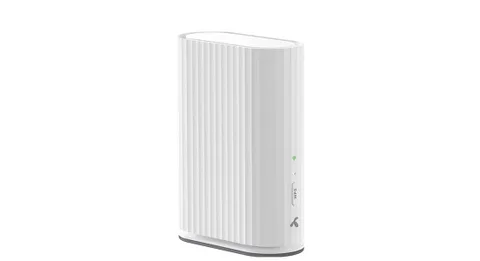
WiFi Ruter II is the router Telenor rents out with fibre, cable and fixed wireless broadband in Norway. You manage it in a browser through Mitt WiFi at wifi.telenor.no, from your home network.
- Sign in
wifi.telenor.no- Password
- Unless you set your own, the admin password is the code after
admin:on the sticker under the router (letters and numbers). The subscription owner can sign in with Telenor ID instead. - Models
- WiFi Ruter II (Zyxel EX5700), WiFi Ruter (DG2200TN), WiFi Forsterker II
Sign in to the Telenor WiFi Ruter
Connect your Mac to the router’s network; Mitt WiFi only works from your home network.
Open
https://wifi.telenor.noin your browser.Click Logg inn med administratorpassordet ditt (Sign in with your admin password) and enter it.
The first time, accept the terms and privacy statement. You land on your account page, then the front page.
Open Min konto (My account), top right, to change the admin password and add a recovery mobile number or email.
Forgotten an admin password you changed? Click Glemt passord (Forgotten password), enter your mobile number or email and choose Send reset link. A password you set survives a router reset and even a new router.
Sign in with Telenor ID
On
wifi.telenor.no, click Logg inn med Telenor ID (Sign in with Telenor ID).Confirm the serial number of your fibre box (ONT) when asked.
If you have broadband at several addresses, pick the right one.
Restart it properly
Telenor’s first advice for most problems is to restart the router, any WiFi Forsterker and the fibre box or modem.
Unplug the router’s power, or use its on/off switch.
Leave it without power for 10 seconds.
Plug it back in. It can take a few minutes before it is online again.
The top lamp on WiFi Ruter II is steady green when connected. Don’t switch the router off while it starts up.
Restart the fibre box or modem
Unplug the fibre box, cable modem or antenna adapter.
Wait one minute, then plug it back in and wait a few minutes.
Schedule a restart
Telenor documents no scheduled restart in Mitt WiFi.
Update the firmware
Telenor updates WiFi Ruter II and WiFi Forsterker II automatically. Both lamps flashing yellow means an update is running.
Leave the router and any Forsterker plugged in and switched on.
If both lamps flash yellow, wait until they stop before unplugging anything.
Telenor’s help pages don’t describe checking the version or starting an update yourself. A Zyxel P8702N used on another provider’s broadband no longer gets updates.
See connected devices
Sign in at
wifi.telenor.noand click Tilkoblede enheter (Connected devices).Find each device under Trådløst (Wireless) or Kablet (Wired), with its IP address.
Tick Statisk (Static) next to a device to keep its IP address fixed, for example before opening ports.
UPnP and port forwarding
Telenor’s help pages for Mitt WiFi don’t mention a UPnP IGD or NAT-PMP setting, or whether the router supports either. Open ports by hand instead.
Telenor warns that opening ports is a security risk. Only expose a service you know is well secured, and avoid it if you’re unsure what it means.
Open ports by hand
Find the device’s IP address under Tilkoblede enheter first and tick Statisk.
On the Mitt WiFi front page, scroll down to Avansert (Advanced).
Click Portåpninger (NAT) (Port openings), then + Lag ny (Create new).
Name the rule, pick the protocol and enter the device’s IP address.
Enter the port under LAN-port and WAN-port, then click Lagre (Save).
The rule opens the port in both NAT and the firewall. A second router behind the Telenor router creates double NAT, which stops apps that rely on UPnP from opening ports.
Prioritise calls and gaming
Telenor documents no QoS or device-priority setting in Mitt WiFi. Foreldrekontroll (Parental control) only blocks internet at set times.
2.4 and 5 GHz, and the channel
Smart WiFi puts 2.4, 5 and (on WiFi Ruter II) 6 GHz under one network name and steers each device to the best band. For a gadget that needs 2.4 GHz only, add an extra network.
Sign in and click Administrer trådløse nettverk (Manage wireless networks).
Scroll to Ekstra nettverk (Extra networks) and switch one to Aktivert (Enabled).
Set Bånd (Band) to 2.4 GHz only.
Enter a Nettverksnavn (Network name) and a password of at least 8 characters, then click Lagre.
Older devices and WPA3
In Administrer trådløse nettverk, enable an extra network.
Change Kryptering (Encryption) from WPA2+WPA3 to WPA2, set a password and click Lagre.
Restart the router.
Change the channel
Telenor’s help pages document no Wi-Fi channel setting in Mitt WiFi.
Mesh: which node a device uses
WiFi Forsterker II forms a mesh with WiFi Ruter II and works only with it. It connects wirelessly and has two Ethernet ports.
With WiFi Ruter II online, plug in the Forsterker halfway towards the weak area and switch it on.
Wait 5 minutes. A steady green or yellow top lamp means it has joined the router.
If not, hold its WPS button until the bottom lamp flashes green.
Within 2 minutes, hold WPS on WiFi Ruter II until it flashes green.
Top lamp green means a good signal, yellow OK, and red means move it closer to the router.
Guest network
WiFi Ruter and WiFi Ruter II can run up to three extra networks, and any of them can be a guest network that reaches the internet but not your home devices.
Sign in at
wifi.telenor.noand click Administrer trådløse nettverk.Scroll to Ekstra nettverk and switch a network to Aktivert.
Switch on Gjestenett (Guest network) for the same network.
Enter a Nettverksnavn and a password of at least 8 characters (Telenor recommends 12), then click Lagre.
DNS settings
Telenor documents no DNS server setting in Mitt WiFi. Set custom DNS on the Mac instead.
Connection status and logs
Check the top lamp on WiFi Ruter II; steady green means connected.
Flashing yellow means it is fetching an IP address; flashing red means it is waiting for configuration.
Sign in at
wifi.telenor.no, scroll down and click Kjør speedtest (Run speed test); it takes up to 15 seconds.Use Telenor’s Smart Feilsøk to check for faults in your area and report one.
Telenor’s help pages describe no event log or line-status page in Mitt WiFi.
Manuals and downloads
- Telenor: Hjelp til WiFi Ruter II
- Telenor: Logg inn på Telenor ruter (Mitt WiFi)
- Telenor: Hjelp til WiFi Forsterker II
Links go to the maker’s own pages.
Questions
I don’t know my Wi-Fi password. What now?
Text WIFI followed by the last 8 digits of the serial number on the sticker under the router to 2000. Telenor replies with the network name and password.
Why won’t wifi.telenor.no open?
Telenor says you must be connected to the router’s own network to reach Mitt WiFi. Join its Wi-Fi or plug in a cable.
Sources
- Telenor: Logg inn på Telenor ruter – administrer WiFi-innstillinger
- Telenor: Hjelp til WiFi Ruter II
- Telenor: Hjelp til WiFi Ruter
- Telenor: Oppkobling av WiFi Ruter II
- Telenor: Endre navn eller passord på nettverket
- Telenor: Ekstra nettverk og gjestenett
- Telenor: Åpne porter
- Telenor: Mitt WiFi, Foreldrekontroll
- Telenor: Problemer med tilkobling på WiFi Ruter II (WPA3)
- Telenor: Løs problemer med Internett (restart)
- Telenor: Hjelp til WiFi Forsterker II
- Telenor: Koble opp WiFi Forsterker II
- Telenor: T-We over IPTV, tredjeparts rutere (models, double NAT and UPnP)
Checked on 1 November 2026.
See what your router can’t tell you
Kilobat is a Mac menu-bar app that watches the network from your side: which app is using it, whether the Wi-Fi, the router or the provider is slow, and why a call froze.
brew install seifip/kilobat/kilobat