Provider box · eir
eir fibre box login, restart, updates and UPnP
The eir fibre box is the modem eir supplies with fibre broadband in Ireland; the current model is the eir fibre box 7, with Wi-Fi 7. You manage it in a browser through the Web Configurator at 192.168.1.254.
- Sign in
192.168.1.254- App
- my eir app (account only)
- Password
- The user name is
admin. On the eir fibre box 7 the password is the Box password on the label on the back; on the F3000 it is the Wi-Fi password on the sticker on the back. The fibre box 7’s Wi-Fi details also come on a sticker inside the box. - Models
- eir fibre box 7, eir fibre box F3000
Sign in to the eir fibre box
Connect your Mac to the eir fibre box by Wi-Fi or with an Ethernet cable.
Open
http://192.168.1.254in your browser and press Return.Enter
adminas the user name and the password from the label.Click LOGIN. The Web Configurator home page opens.
Forgotten a password you changed? Hold the reset button on the back with a pin for 8–10 seconds, until all the lights go off. That restores the label passwords but erases every setting, including Wi-Fi names and port forwards.
Change the admin password
Click Access Control, then User.
Enter the Old Password, then the New Password (at least 8 characters) twice.
Click Apply.
Restart it properly
eir’s own advice for most problems is a full power cycle. It takes about two minutes and cuts internet and eir Broadband Talk meanwhile.
Turn the modem off with the On/Off button on the back.
Unplug the power cable and wait 30 seconds.
Plug it back in and switch the modem on.
Wait about two minutes, then restart the device that had the problem.
Don’t hold the reset button to restart: more than 10 seconds restores factory settings.
From the Web Configurator (F3000)
Sign in and click Modem Config › Maintenance › Resets.
Click Restart. The sign-in page returns when the modem is back, after about two minutes.
Schedule a restart
eir documents no scheduled restart for its modems.
Update the firmware
Sign in and click Modem Config › Device Info › General to see the current software version.
Leave the modem powered on; eir supplies and installs software updates.
eir’s F3000 manual says a manual upgrade under Maintenance › Software update needs an image file provided by eir, so there is nothing to download yourself. eir’s pages for the fibre box 7 don’t describe its update process.
See connected devices
Sign in. The home page shows connected devices under Ethernet and Wi-Fi.
Click a device icon to open its settings.
For a full list with IP addresses, click Modem Config › Device Info › DHCP Leases.
Open ARP in the same menu to match IP addresses to hardware (MAC) addresses.
On the fibre box 7, Access Control also lists devices, so you can pick them for a parental-control time rule.
UPnP and port forwarding
eir’s F3000 manual documents UPnP IGD, which lets devices on your network open ports in the modem by themselves. The switch sits on the port-forwarding page.
Sign in and click Access Control › Port Forwarding › Add Rule.
Set Enable UPnP IGD to ON, or OFF to stop automatic port opening.
Leave Advertisement Period (30 minutes) and Advertisement TTL (4 hops) at their defaults.
Click Apply.
With UPnP on, any app on your network can open ports through the firewall without asking, and malware can too. Leave it off unless a console or app needs it. eir’s pages don’t say whether the fibre box 7 has the same switch.
Fixed port forwards
On the same page, pick a Service, or Other to name your own.
Fill in Protocol, External port, Internal host and Internal port, then add the rule.
Or use Games & Applications to pick a game and enter the device’s IP address.
NAT-PMP
eir’s manuals don’t mention NAT-PMP.
Prioritise calls and gaming
eir documents no QoS or device-priority setting on the eir fibre box 7 or F3000.
2.4 and 5 GHz, and the channel
eir’s modems broadcast a 2.4 GHz and a 5 GHz network. On the F3000, giving both the same name and password lets band steering move devices to the better band; different names make two separate networks.
Sign in and click the settings symbol under Wi-Fi (on the F3000, under Wi-Fi 2.4 GHz or Wi-Fi 5 GHz).
On the fibre box 7, choose Private, your main network.
Enter the network name under SSID and a new Password of at least 8 characters.
Click Apply, then reconnect your devices.
Change the channel
Under Wi-Fi, click the settings symbol and choose Private.
Scroll to Channel Selection and pick a channel from the first drop-down menu.
Click Apply, then repeat for the second drop-down menu (the other band) if needed.
eir’s F3000 manual recommends leaving the channel on Auto. Change it only to dodge interference you have measured.
Band steering (F3000)
Give the 2.4 GHz and 5 GHz networks the same name and security settings.
Open Band Steering in the Wi-Fi settings, set it to ON and click Apply.
Mesh: which node a device uses
eir sells boosters that extend the fibre box’s Wi-Fi under the same network name. The eir WiFi 7 booster works only with the eir fibre box 7; other eir modems use the eir WiFi 6 booster or the older eir Smart WiFi hub.
Plug in the WiFi 7 booster near the fibre box, switch it on and wait for its light to flash red.
Press WPS on the fibre box 7 for 2 seconds, then on the booster for 4 seconds.
Wait about 5 minutes until the booster light turns solid white.
Move the booster halfway to the weak area, then press its WPS button briefly to check the link.
The link light shows green (excellent), orange (OK) or red (move it closer). Pink flashing means the booster is updating: don’t unplug it.
Guest network
eir’s help pages document no guest Wi-Fi setting for the eir fibre box 7 or F3000. Its tutorials only cover the main (Private) network.
DNS settings
eir documents no way to change the DNS servers the modem hands out. Internet Connectivity › Basic on the F3000 only shows the DNS servers eir assigns. Set custom DNS on the Mac instead.
Connection status and logs
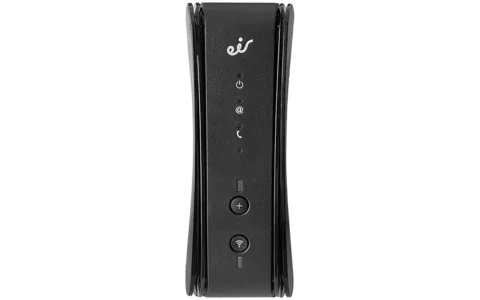
Check the lights; on the fibre box 7 the power and internet (@) lights sit on the front.
Sign in and click Internet Connectivity › Basic for the public IP address and DNS servers.
Click Modem Config › Device Info › Statistics for LAN, WAN and Ethernet counters.
Click Modem Config › Maintenance › Logs for the event log, and Internet Utilities for ping and DNS tests.
Menu paths in this section are from eir’s F3000 manual. For speed problems, eir asks you to test over an Ethernet cable at eir’s broadband speed test before contacting support.
Manuals and downloads
- eir: eir fibre box (F3000) user manual (PDF)
- eir Support: eir fibre box 7
- eir Support Tutorials: eir fibre box 7
- eir Smart WiFi Hub quick start guide (PDF)
Links go to the maker’s own pages.
Questions
What is the eir modem password?
The user name is admin. The password is printed on the label on the back of the modem: the Box password on the fibre box 7, the Wi-Fi password on the F3000 and older models.
Will the eir WiFi 7 booster work with my older eir modem?
No. eir says the WiFi 7 booster works only with the eir fibre box 7; other modems need the eir WiFi 6 booster.
Sources
- eir Support Tutorials: eir fibre box 7, Access the Web Configurator
- eir Support Tutorials: eir fibre box 7, Change username and password for the Web Configurator
- eir Support Tutorials: eir fibre box 7, Factory reset
- eir Support Tutorials: eir fibre box 7, Change your WiFi channel and frequency
- eir Support Tutorials: eir fibre box 7, Change your WiFi’s name (SSID) and password
- eir Support Tutorials: eir fibre box 7, Set up Parental control
- eir Support Tutorials: eir fibre box 7, Buttons and ports overview
- eir Support Tutorials: eir fibre box F3000, Change your WiFi’s name (SSID) and password
- eir: eir fibre box (F3000) user manual (PDF)
- eir Support: eir fibre box 7 modem (reset, settings)
- eir Support: eir fibre box 7 WiFi issues
- eir Support: eir fibre box 7, where can I find my WiFi password
- eir Support: eir WiFi 7 booster
- eir Smart WiFi Hub quick start guide (PDF)
Checked on 1 November 2026.
See what your router can’t tell you
Kilobat is a Mac menu-bar app that watches the network from your side: which app is using it, whether the Wi-Fi, the router or the provider is slow, and why a call froze.
brew install seifip/kilobat/kilobat